 Calpaper
Change your iPhone wallpaper automatically every day.
For a different photo each day, your iPhone has Photo Shuffle built in. For a wallpaper that also redraws today’s calendar and reminders, Calpaper uses a daily automation in Apple Shortcuts.
A different photo each day
If you want to rotate photos you already have, start with Photo Shuffle:
- Open Settings → Wallpaper → Add New Wallpaper.
- Choose Photo Shuffle, then select an album or the suggested photo categories.
- Set the shuffle frequency to Daily and confirm your selection. If you choose photos manually, the frequency is in the … menu.
Apple also offers hourly changes, changes when you lock the phone, and changes when you tap. You can follow Apple’s Photo Shuffle instructions for the available options.
Photo Shuffle rotates existing pictures. It does not generate the calendar, reminders, or countdowns that Calpaper draws into a wallpaper.
Today’s plans on a fresh wallpaper
Calpaper creates an image with the content you choose: calendar events, Apple Reminders, a note, the month, or countdowns. Shortcuts then sets that image as your wallpaper.
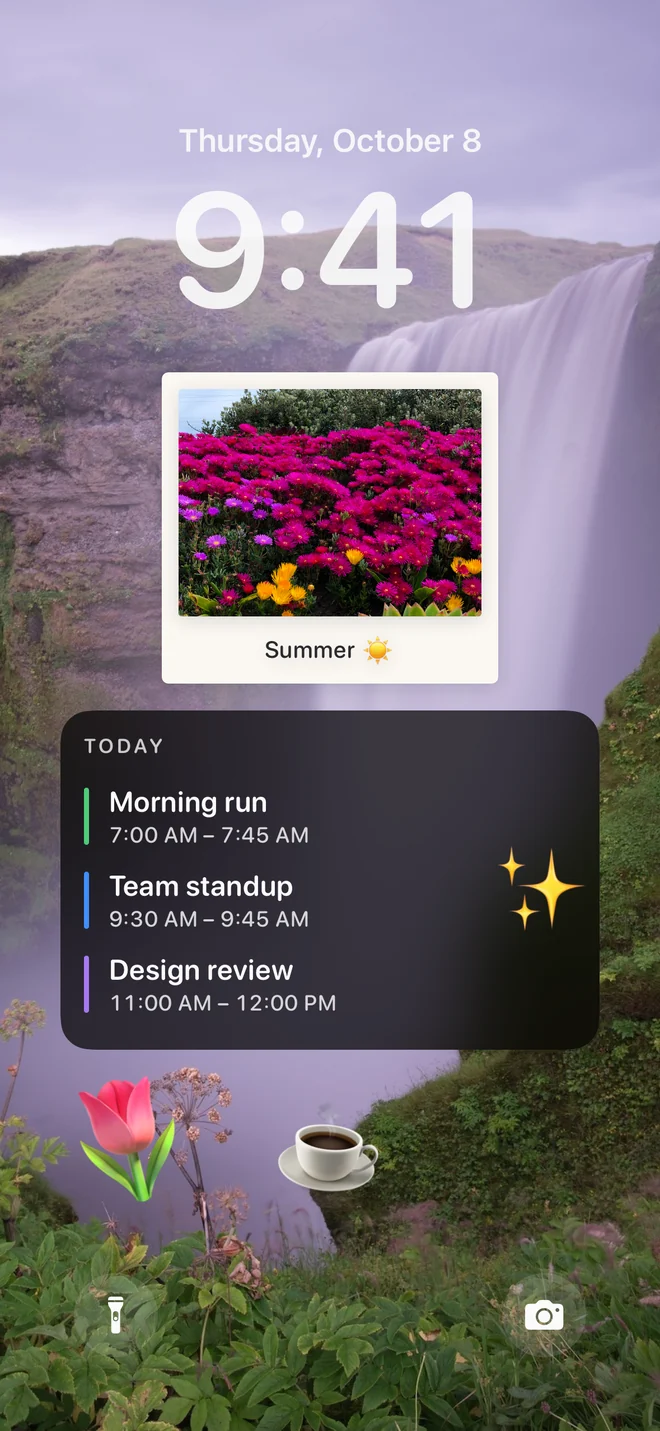
The daily calendar wallpaper is free. With a one-time Calpaper Pro purchase, you can also use your own photos and turn on New photo every morning.
The setup has three parts:
- Create a separate wallpaper. In Settings → Wallpaper, add a new photo wallpaper for Calpaper. The automation replaces its image, so giving Calpaper its own wallpaper protects the ones you already use.
- Import and point the shortcut. Add the ready-made shortcut from Calpaper’s setup guide. Choose your dedicated wallpaper in its Wallpaper field, then run it once and allow the permission prompts. Keep Show Preview and Crop to Subject off.
- Enable the daily run. On iOS 18–26, create a Time of Day automation, choose Daily and Run Immediately, and select the Calpaper tile under My Shortcuts. On iOS 27, the imported shortcut includes a 6:00 trigger; turn its Automation on. Finish the in-app guide and choose Always Allow when asked.
Follow the complete Calpaper setup guide for every tap on your iOS version. It covers the wallpaper selection and first-run permissions that a scheduled update needs.
When does the wallpaper change?
On iOS 18–26, you choose a time in the daily automation. Calpaper’s guide suggests 6:00 AM. Its shared iOS 27 shortcut already includes a daily 6:00 trigger, which arrives switched off until you enable it.
Apple’s Time of Day automation documentation explains scheduled times and daily repeats. Its iOS 27 automation guide explains triggers attached to shortcuts.
Your Calpaper wallpaper is a snapshot from the last successful run. Adding an event or completing a reminder does not immediately change that image. Tap Update in Calpaper to redraw it during the day, or let the next scheduled run refresh it.
If the morning update does not run
Check the schedule
Make sure the automation is enabled and repeats daily. On iOS 18–26, select Run Immediately; a run that waits for confirmation cannot finish unattended. On iOS 27, check that the imported automation has been turned on.
Choose a wallpaper and answer permissions
Open the shortcut and explicitly choose your dedicated wallpaper. Run it manually once to answer the permission prompts. Finish Calpaper’s setup check and use Always Allow when asked to let the app output the wallpaper. An unanswered question can stop the scheduled run.
Check that the shortcut sets the image
On iOS 18–26, the automation should run the Calpaper tile under My Shortcuts. Selecting Calpaper from the apps list only generates the picture; it does not set the wallpaper. The ready-made shortcut connects Get Today’s Calpaper to Set Wallpaper Photo.
For a cropped image, a missing shortcut, or missing calendar events, visit Calpaper support. You can also open the full setup guide inside Calpaper → Settings → Setup guide.
Put today’s plans on your Lock Screen.
Calpaper is free to download for iPhone with iOS 18 or later. No account required.