 Calpaper
A new Lock Screen photo every morning, with Shortcuts.
You have a handful of favourite photos and you’d like to wake up to a different one each day, without installing anything. Apple’s Shortcuts app can do it: at a time you choose, it picks a random photo from an album and puts it on your iPhone’s Lock Screen.
This is the do-it-yourself recipe: two actions and a daily automation, with separate steps for iOS 18–26 and iOS 27. It ends with the traps that let a shortcut work when you tap ▶ and then do nothing at 6:00.
Built step by step in Apple’s iPhone simulator on iOS 18.0, 26.5 and 27.0 on 27 October 2026. Every label below is the one Shortcuts showed there, in English.
Only want your photos to rotate? Photo Shuffle, in Settings → Wallpaper, is simpler and needs no automation. It can change the photo on tap, on lock, hourly or daily: see our Photo Shuffle guide. Build it with Shortcuts when you want the change at a time you pick, from an album you keep editing in Photos.
Before you start: an album and a wallpaper
You need an iPhone on iOS 18 or later (Settings → General → About shows your version) and Apple’s Shortcuts app. If you removed Shortcuts, reinstall it from the App Store. Then, on any version:
- Make the album. In Photos, create a new album in the Albums section (under Collections on iOS 26 and 27). Name it Wallpapers, add your photos and save it. Tall photos suit a Lock Screen best. You can add or remove photos any time: the shortcut looks in the album each morning.
- Give the shortcut a photo wallpaper of its own. Open Settings → Wallpaper → Add New Wallpaper, tap Photos and pick any photo. Tap Add, then Set as Wallpaper Pair. The shortcut replaces this wallpaper’s photo every morning, so your other Lock Screens stay as they are. It must be a Photos wallpaper, not a Color or Emoji one (trap 1).
Build it on iOS 18–26
On these versions you build the shortcut first, then an automation in the Automation tab that runs it.
The shortcut
- Open Shortcuts. On the Shortcuts tab (Library on iOS 26), tap +.
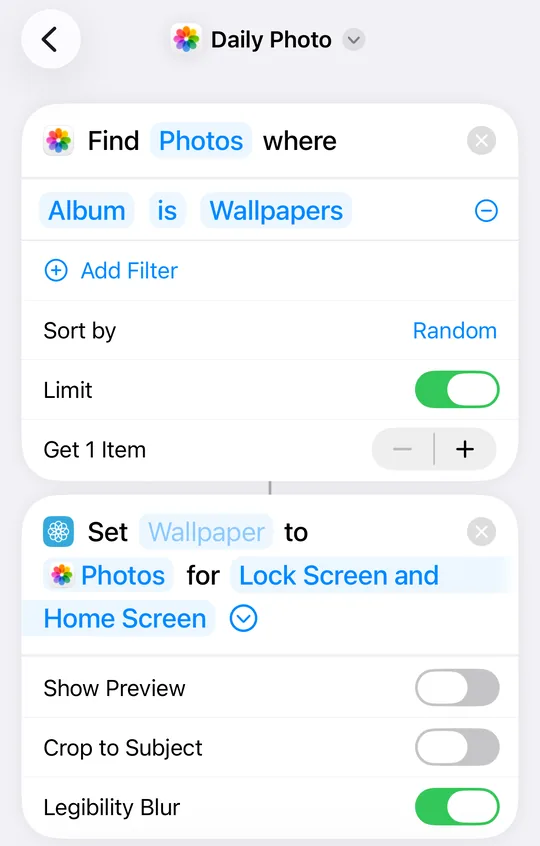
- In Search Actions, type Find Photos and tap it.
- Tap Add Filter. The new line reads Album is Choose: tap Choose and pick your album.
- Next to Sort by, tap None and choose Random.
- Turn on Limit and tap − until it reads Get 1 Item.
- Search for Set Wallpaper Photo and tap it. It reads Set Wallpaper to Photos for Lock Screen and Home Screen, where Photos is the photo the first action found.
- Tap Wallpaper, choose the photo wallpaper you added, and tap Done (on iOS 26, ✓).
- Tap the circled › and turn off Show Preview and Crop to Subject.
- Shortcuts names a new shortcut after its last action, Set Wallpaper Photo. Tap that name at the top, choose Rename, and call it Daily Photo.
- Tap ▶ once and answer any question Shortcuts asks (trap 4). Then tap Done (on iOS 26, ‹) to save.
The daily automation
- Tap Automation at the bottom, then +. If you have no automations yet, tap New Automation.
- Tap Time of Day. Set the time on the wheels and keep Daily. Then select Run Immediately. On iOS 26 it can sit just below the bottom edge (it does on an iPhone 17 Pro): swipe up on Daily to reveal it, since a swipe on the wheels changes the time instead. Tap Next.
- Under My Shortcuts, tap the Daily Photo tile. The automation is saved straight away.
- Check it: tap the new automation in the list. The top row should read Automation with Run Immediately. That screen is the only place the setting shows.
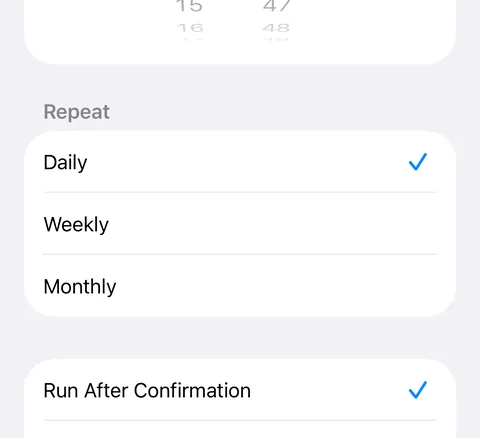 As it opens
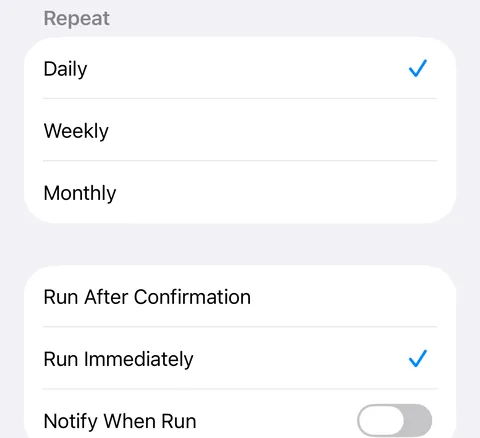 After a swipe on Daily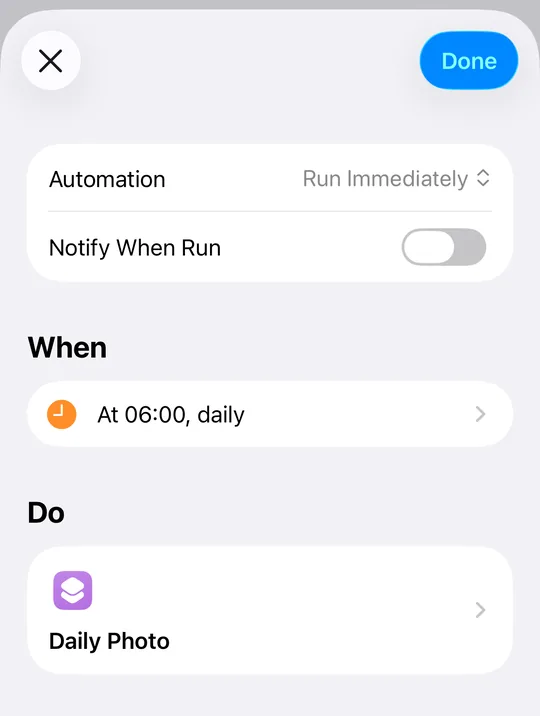
Build it on iOS 27
On iOS 27 the time belongs to the shortcut itself: it’s a trigger at the top of the shortcut, not a separate automation.
- Open Shortcuts and tap +. If a Describe a shortcut screen appears, tap Edit at the top right to build it by hand.
- Tap Search, type Find Photos and tap it. Then set it up as above: Add Filter and choose your album in place of Choose; Sort by Random; turn on Limit and tap − until it reads Get 1 Photo.
- Search for Set Wallpaper Photo and tap it. Tap Wallpaper, choose your photo wallpaper and tap ✓. Tap the circled › and turn off Show Preview and Crop to Subject.
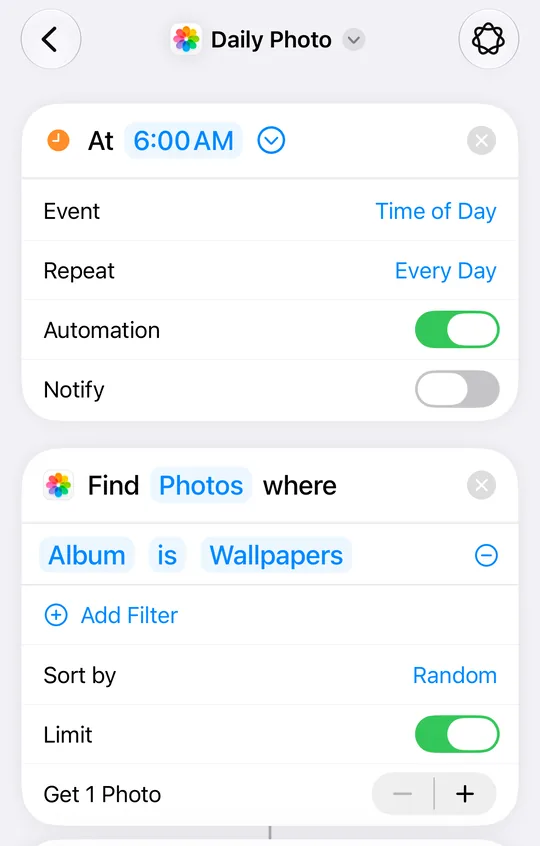
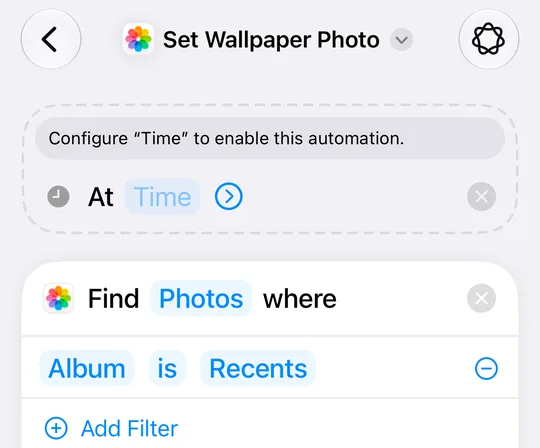
- Add the time: tap Search, then the Automation button, then Time of Day. A box appears at the top saying Configure “Time” to enable this automation. Tap Time, turn the wheels to your time and tap outside them. The box should now read At 6:00 AM, or your time.
- Tap the circled › next to the time and check it: Repeat says Every Day and Automation is on.
- Tap the name at the top (Set Wallpaper Photo), choose Rename, and call it Daily Photo.
- Tap ▶ once and answer any question Shortcuts asks. Tap ‹ to save.
To change it later, hold its tile and tap Edit. If that opens Describe a change, tap Edit at the top right to reach the actions.
Why it works with ▶ but not at 6:00
A run you start yourself can stop and ask you things. The morning run has nobody to ask, so it fails without a word. These are the ways we’ve seen the morning run fail while a run you start yourself can still look fine. We learned them setting up Calpaper’s own shortcut, which uses the same Set Wallpaper Photo action, on iPhones and simulators.
- The wallpaper isn’t a Photos wallpaper. Set Wallpaper Photo replaces the photo of a wallpaper made from Photos. On a Color or Emoji wallpaper, iOS stops with “Photos cannot be set on the selected wallpaper”. Add one from Photos, as in Before you start.
- No wallpaper picked. With the Wallpaper slot left empty, a run you start can ask which wallpaper to use. The morning run can’t, so pick it in the action.
- Show Preview or Crop to Subject left on. Show Preview waits for a tap that never comes at 6:00. Crop to Subject zooms in on what it takes to be the subject. Turn both off.
- A permission question nobody answers. A shortcut’s first runs can ask for permission, for example to set a wallpaper. Run it once with ▶ and answer Allow. If Always Allow is offered, choose it: Allow Once covers only that run, so the morning run asks again. (In the simulator this shortcut ran without asking. On an iPhone, Calpaper’s shortcut asks two questions on its first run.)
- iOS 18–26: Run After Confirmation. A Time of Day automation is saved as Run After Confirmation unless you select Run Immediately. Then it asks you first every morning, and nothing changes until you answer. On iOS 26 it can start out of sight, below the bottom edge. Check the top row of the saved automation (step 14).
- iOS 27: a time that never moved. The wheels open on the current time, but the trigger only counts once a wheel moves. Until then it says Configure “Time” and the automation is off. If the time you want is already showing, turn a wheel away and back.
Variations
- A random recent photo instead of an album: choose Recents as the album. Use Add Filter to add Is Not a Screenshot, and Media Type is Image, so screenshots and videos stay out.
- Your favourites: use the Is Favorite filter in place of the album.
- Only the Lock Screen: tap Lock Screen and Home Screen in the wallpaper action and untick Home Screen.
- A second change in the day: add another automation at another time. On iOS 27, duplicate the shortcut (hold its tile, Duplicate) and change its time.
What it can’t do
- It changes only when the automation runs. On iOS 18–26, Time of Day repeats Daily, Weekly or Monthly; there’s no hourly option. For a change on every lock, on tap or every hour, Photo Shuffle is the tool.
- Random isn’t a shuffle. The same photo can come up two mornings running. A bigger album makes that rarer.
- What we couldn’t check in the simulator. The simulator can’t show photo wallpapers, so we didn’t see the final photo land there. The traps above come from setting up Calpaper on real iPhones.
Want today’s plans on that photo?
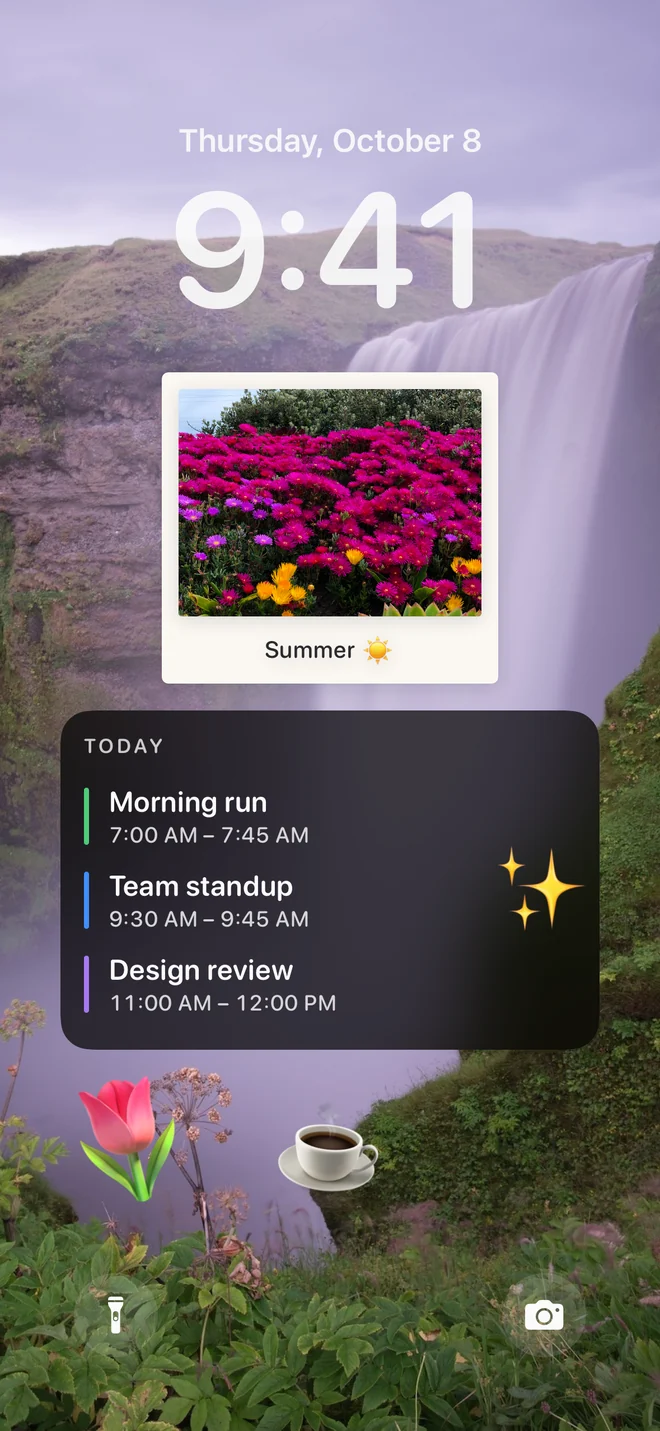
Calpaper is an iPhone app that draws today’s events, reminders and countdowns into a wallpaper each morning. Its ready-made shortcut uses the same Set Wallpaper Photo action, and arrives with Show Preview and Crop to Subject off. The daily calendar wallpaper is free. Your own photos as the background, and a new photo every morning, come with Calpaper Pro, a one-time purchase.
Calpaper needs iOS 18 or later. No account required. See how its setup works.