How to make the Lock Screen clock smaller on iPhone
Checked on the iOS 18.0, 26.5 and 27.0 simulators · Updated
Short answer
On iOS 27, switch the clock to Compact: touch and hold the Lock Screen, tap Customize, tap the time, then tap the small button at the top right of Font & Color. The time moves beside the date, in one short row at the top. On iOS 26 the clock can be stretched taller and back, but never smaller than its standard size. On iOS 18 its size can’t change, only its weight.
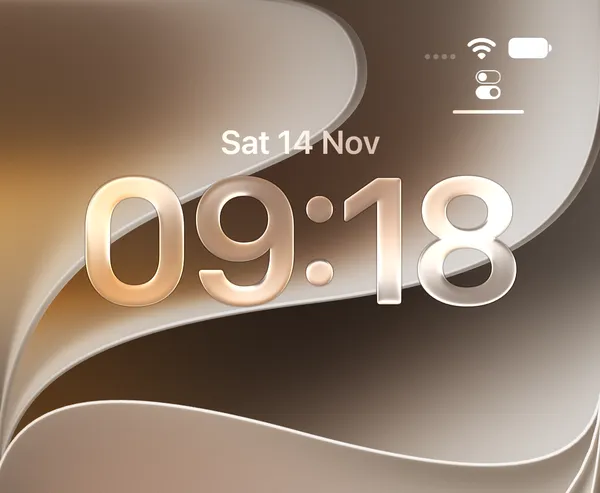 Full
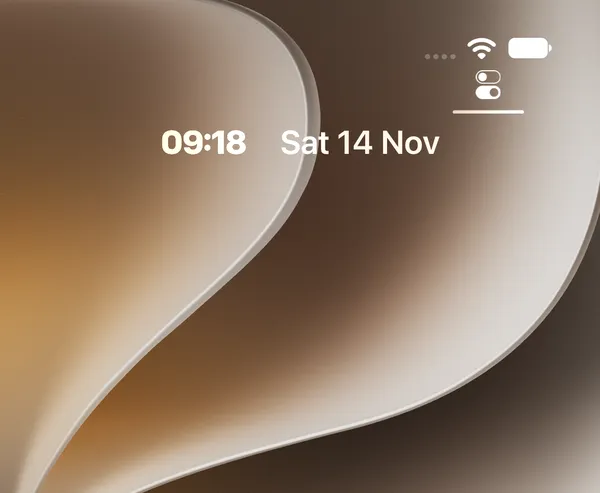 Compact
iOS 27: the compact clock
Not sure which iOS you have? Settings › General › About shows it.
- Touch and hold the Lock Screen, then tap Customize. If you’re asked, unlock with Face ID or your passcode first.
- Tap the time. The Font & Color panel opens at the bottom.
- Tap the button at the top right of Font & Color, across from the globe. VoiceOver calls it Clock Size: it reads Full until you tap it, then Compact. The time jumps up beside the date straight away.
- Tap the wallpaper to close the panel, then tap Done.
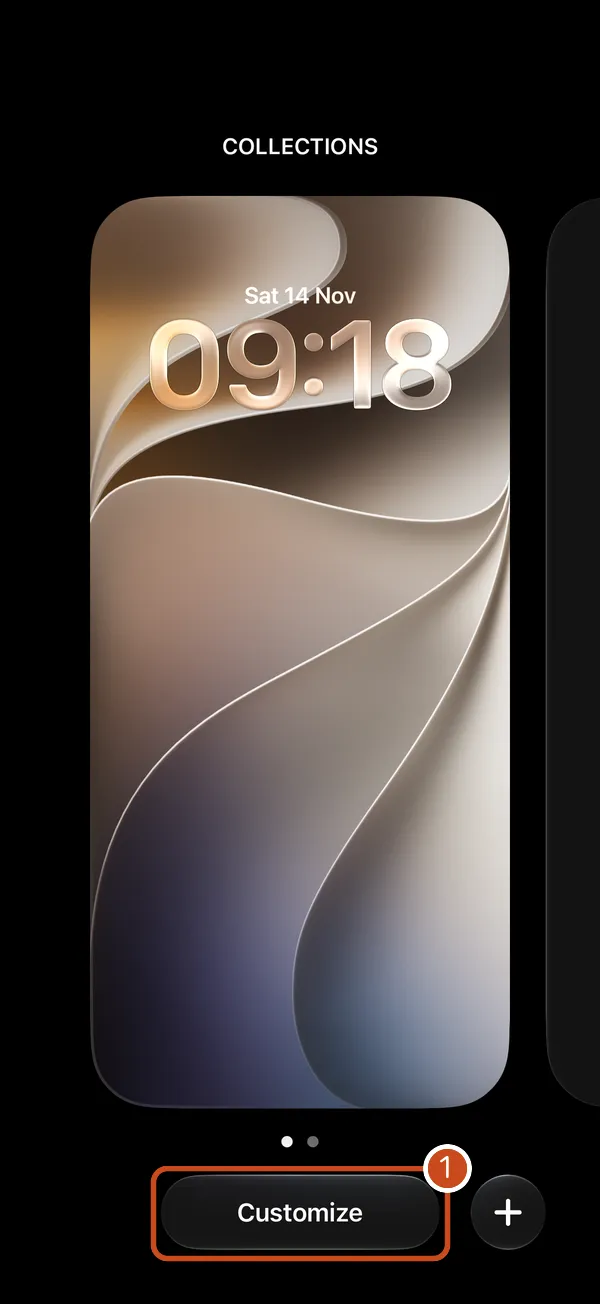 Step 1
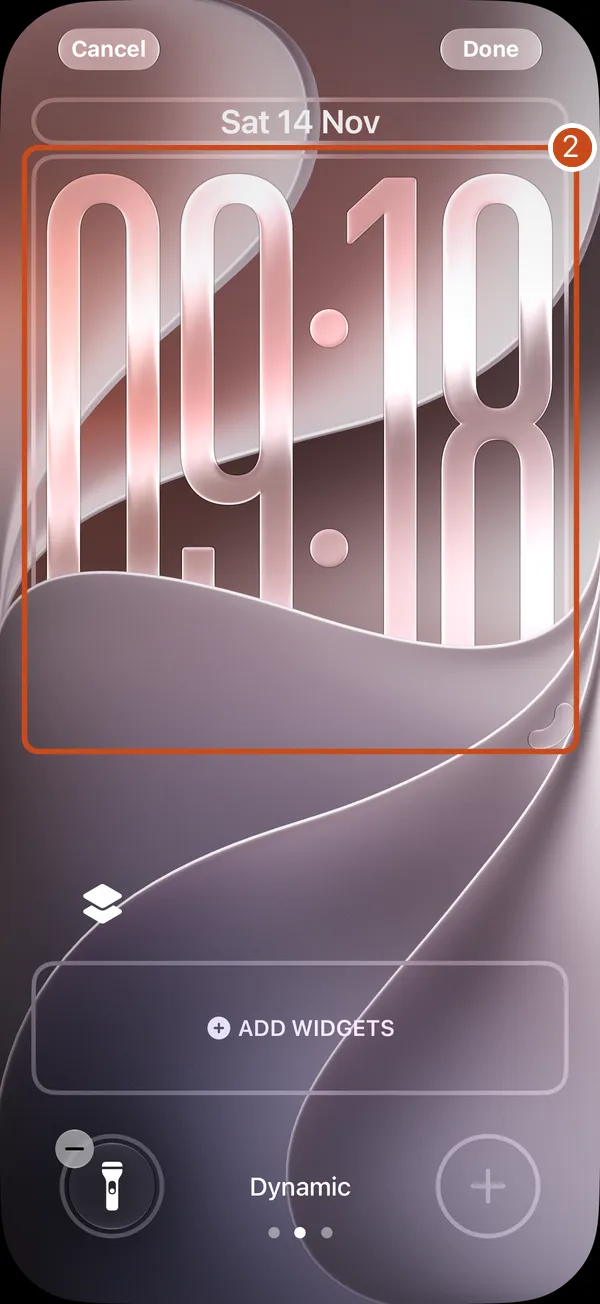 Step 2
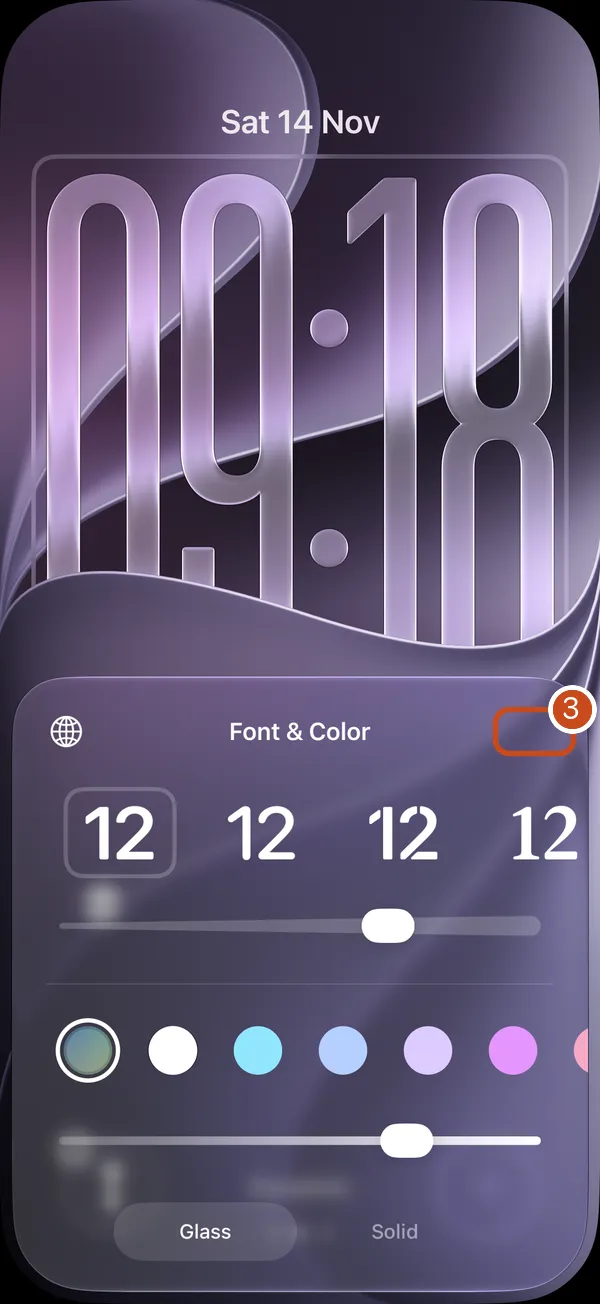 Step 3: Full
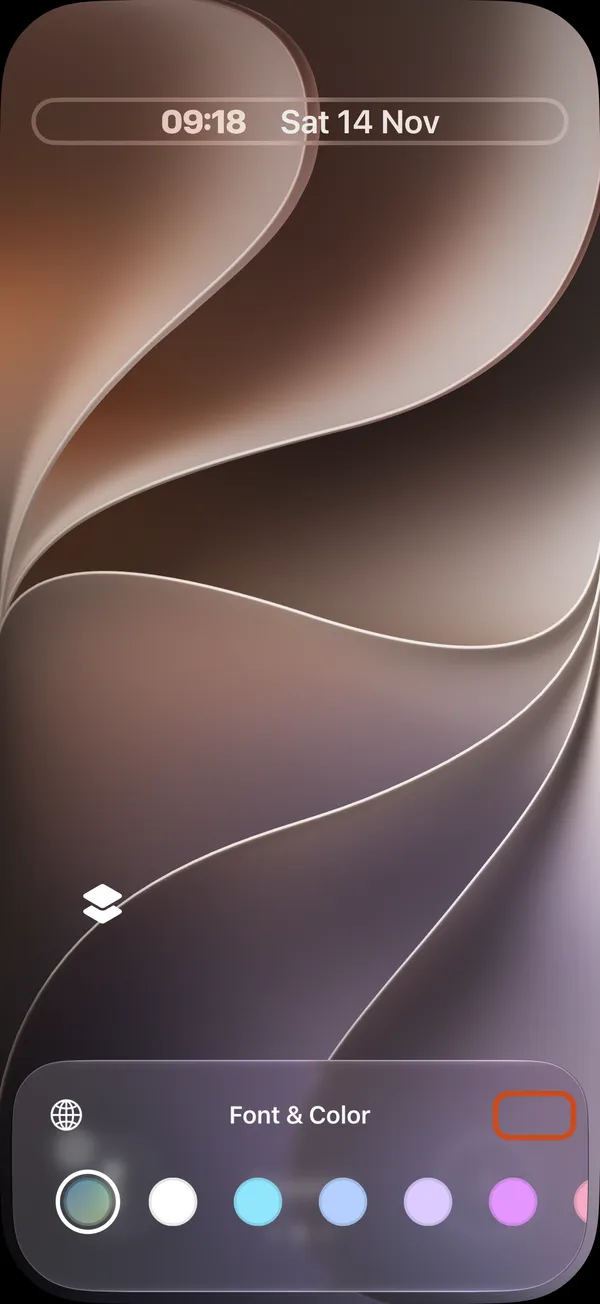 After the tap: Compact
In Compact, Font & Color keeps only the colours. The fonts, the weight slider, Frost and Glass | Solid belong to the full clock, so pick the font first if you care about it, then switch.
Apple’s iPhone User Guide for iOS 27 doesn’t describe Compact yet. These steps, and the button’s name, come from the iOS 27.0 simulator on 14 November 2026.
Back to the full clock
Repeat the steps and tap the same button again: it goes back to Full. The full clock on iOS 27 is the same as iOS 26’s, with the handle described next, so it can also be stretched.
iOS 26: stretched, then back
iOS 26 has no compact clock. Its clock can grow taller: Apple’s guide says “Drag the bottom right corner to increase the height”. If yours was stretched and now covers too much of the wallpaper, shrink it back:
- Touch and hold the Lock Screen, then tap Customize.
- Drag the curved handle at the clock’s bottom right corner up, as far as it goes.
- Tap Done.
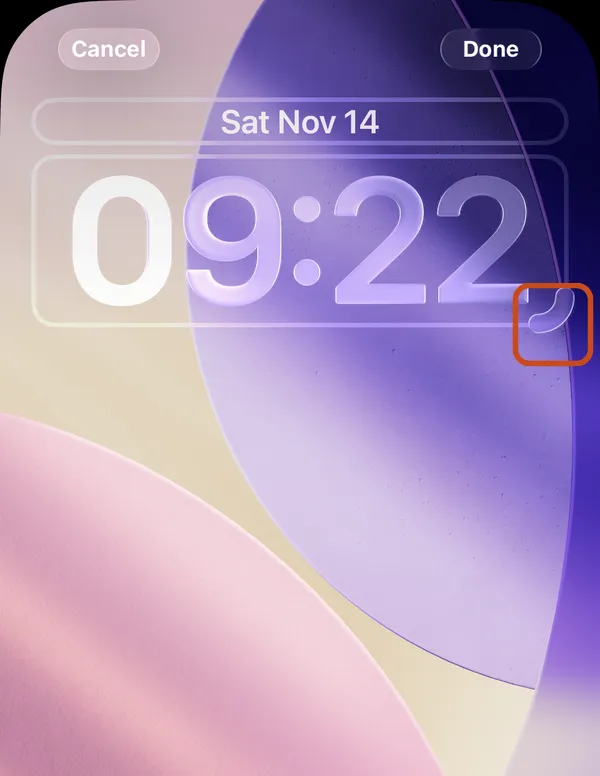 Standard size
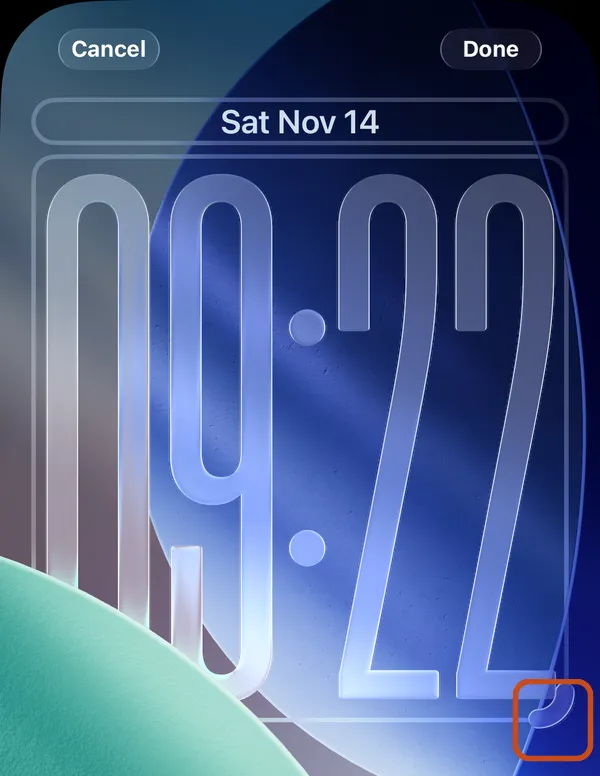 Stretched
Two things we found on the iOS 26.5 simulator: the clock never went smaller than its standard size, and the handle appeared only with the first font in Font & Color. With another font there was no handle.
iOS 18: weight, not size
iOS 18’s clock has one size. Tap the time in the editor and Font & Color offers fonts, colours and a weight slider: “Drag the slider to make the font heavier or lighter (available for solid fonts),” in Apple’s words. A lighter weight makes the time look less heavy, but it takes the same space. On the iOS 18.0 simulator there was no size control, and dragging the clock’s corner did nothing.
What a smaller clock is good for
- More of your photo shows. The compact row frees the space the big time took, so more of the wallpaper shows.
- Depth Effect. On iOS 26 and 27, a stretched clock can stop the subject of a photo from overlapping it, and iOS says Make time smaller to use Depth Effect. Shrinking the clock lets the effect back.
- Room for your day. A calendar wallpaper starts under the clock, so a compact clock leaves space for more of it.
Questions
Why don’t I have the compact clock?
It’s new in iOS 27. On iOS 26 the clock can only be stretched taller and brought back; on iOS 18 its size is fixed.
Can I change the compact clock’s font?
Not while it’s compact: Font & Color shows only the colours then. Switch to Full, choose the font, then switch back. We didn’t check whether the compact row then uses that font.
Where’s the handle to resize the clock?
On iOS 26, and with the full clock on iOS 27, it’s the small curved mark at the bottom right corner of the time in the editor. It appears only with the first font in Font & Color.
Can I change the clock without touching the wallpaper?
Yes. The clock is part of the Lock Screen’s settings; changing it leaves the wallpaper as it is.
Your day under a compact clock
Calpaper is an iPhone app that draws today’s events, reminders and a note into your Lock Screen wallpaper each morning. iOS doesn’t tell apps which clock you use, so Calpaper asks: choose Compact under Canvas › Lock Screen clock and its blocks start just under the compact row, with room for more of the day.
Before you download:
- It needs an iPhone with iOS 18 or later.
- Setup uses Apple’s Shortcuts app, once, for a few minutes: 5 steps on iOS 27, 10 on iOS 18–26 (see them for your version).
- You give Calpaper a Photos wallpaper of its own, any photo: Shortcuts can’t put a picture on a Color or Emoji wallpaper.
- It’s a picture redrawn each morning and whenever you tap Update, not a live widget.
- Events, reminders, a note, the month, one countdown and seven text sizes are free. Photo backgrounds, tomorrow beside today and the extra styles are Calpaper Pro, one purchase, never a subscription.