How to create and customize your iPhone Lock Screen
Steps checked on the iOS 18.0, 26.5 and 27.0 simulators; Focus and Settings › Wallpaper from Apple’s iPhone User Guide · Updated
Short answer
Touch and hold the Lock Screen. Tap + to make a new one, or Customize to change the one you see: tap the time for its font and colour, Add Widgets for widgets, swipe for styles, then Done. To switch, swipe to another Lock Screen and tap it. To delete one, swipe it up and tap the bin.
The steps are the same on iOS 18, 26 and 27 except where noted; the pictures are from the iOS 27.0 simulator. Settings › General › About shows which iOS you have.
Open your Lock Screens
Wake the iPhone and touch and hold the Lock Screen. Your Lock Screens appear as cards, each with its kind above it, such as COLLECTIONS or COLOR, and two buttons below: Customize and +.
If they don’t appear, the iPhone may still be locked. Apple’s advice: “touch and hold your Lock Screen again, then enter your passcode.”
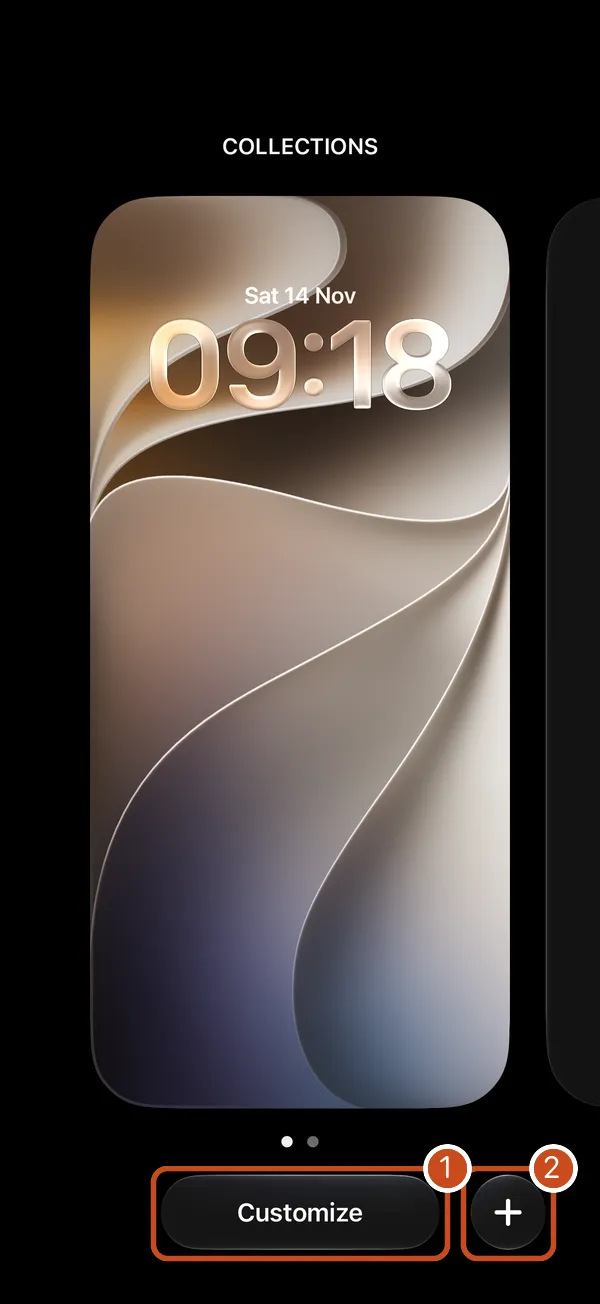
Make a new Lock Screen
- Tap +. The wallpaper gallery opens: on iOS 18, a sheet called Add New Wallpaper; on iOS 26 and 27, a full screen with Cancel at the top left.
- Pick a wallpaper. The gallery has sections such as Emoji, Color, Collections, Astronomy, Photos and Kaleidoscope. On an iPhone there’s also a row of buttons at the top, “for example, Photos, Emoji, or Color”, as Apple puts it, and suggested photos. A Color wallpaper opens its colour picker first: tap the wallpaper to close it.
- Make it yours in the editor that opens: the clock, widgets and style, as in Change a Lock Screen.
- Tap Add, then choose Set as Wallpaper Pair to use it on the Home Screen too, or Customize Home Screen to give the Home Screen a colour, another photo or a blur.
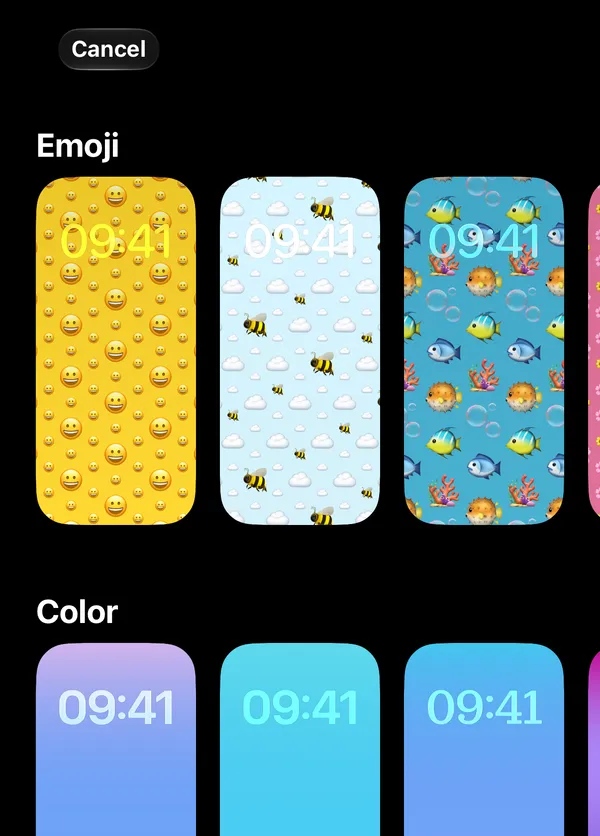 The gallery
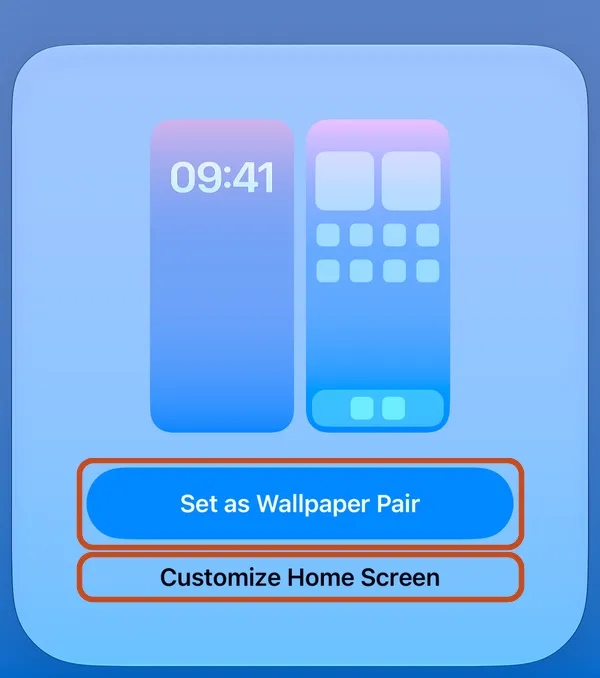 After Add
The new Lock Screen becomes the current one. Your others stay in the row, one swipe away.
Change a Lock Screen
Touch and hold the Lock Screen, swipe to the one you want and tap Customize. On iOS 18, choose Lock Screen on the next screen (the other picture is the Home Screen). On iOS 26 and 27 the editor opens straight away.
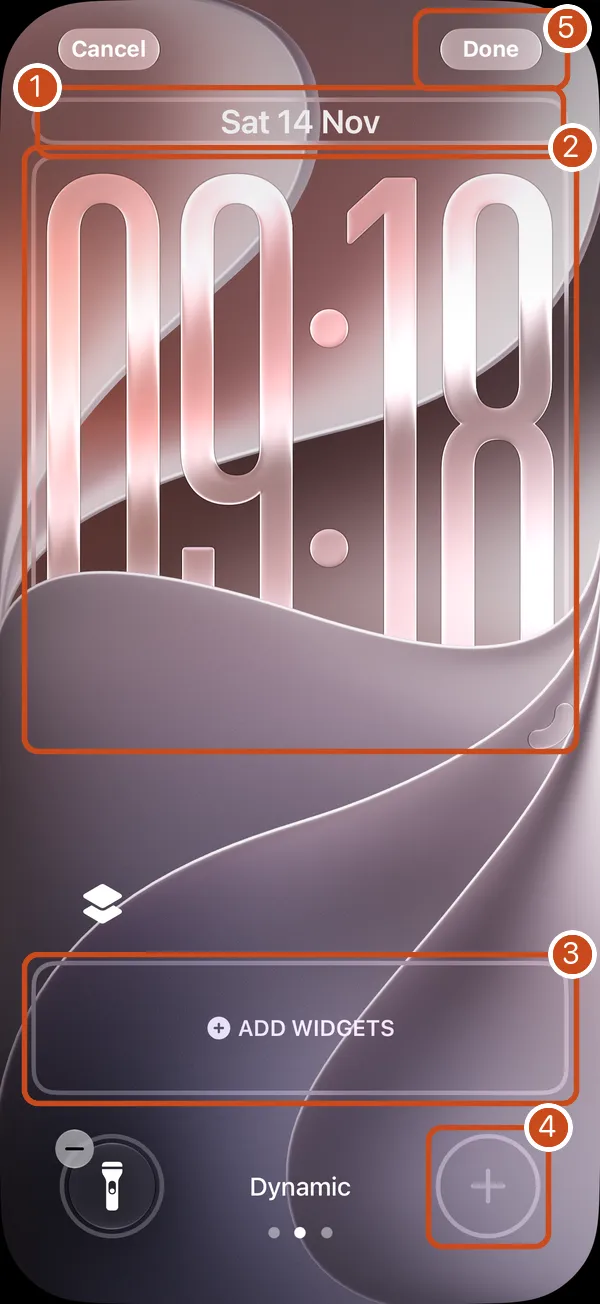
- The date. Tap it to add a small widget in its row, such as the weather.
- The time. Tap it for Font & Color: fonts, a weight slider (“available for solid fonts”), colours, and a globe that switches the digits to another numbering system, such as Eastern Arabic. iOS 26 and 27 add Glass | Solid and a slider for how see-through the glass is. To change the clock’s size, see how to make the Lock Screen clock smaller.
- Add Widgets. Tap it to choose widgets from your apps, such as Batteries, Calendar or Fitness; tap ⊖ on a widget to remove it. On iOS 18 the box sits under the clock; on iOS 26 and 27 it sits near the bottom, above the buttons.
- The buttons at the bottom. Apple’s steps: “Tap [⊖] on one of the controls, then tap [+]”, and pick another control, such as the Calculator, from the gallery.
- Done saves it.
Also in the editor:
- Styles. Swipe left or right across the wallpaper: “to try different color filters”. The style’s name shows at the bottom, with a dot for each.
- A photo. “Pinch open to zoom in, drag the image with two fingers to move it, then pinch closed to zoom out.” The Depth Effect button, at the bottom left, lets the photo’s subject overlap the time when the photo allows it.
- Light and dark. Some wallpapers have both: an Appearance button at the bottom right switches between them.
Switch between Lock Screens
Touch and hold the Lock Screen, swipe to the one you want, and tap it. It becomes your Lock Screen, with its own clock, widgets and buttons. If it’s linked to a Focus, that Focus turns on too.
Link a Lock Screen to a Focus
A Lock Screen linked to a Focus, such as Work or Sleep, appears whenever that Focus is on. Apple’s steps:
- Touch and hold the Lock Screen until the Customize button appears.
- Tap Focus near the bottom of the wallpaper.
- Select a Focus, then tap the close button.
If you don’t see Focus, Apple says to set one up first in Settings › Focus. iOS always keeps one Lock Screen with no Focus, so with only one Lock Screen it says This Lock Screen Can’t Be Linked: make another first.
The simulators have no Focus to link, so these steps are Apple’s, from its iPhone User Guide for iOS 18, 26 and 27.
Delete a Lock Screen
- Touch and hold the Lock Screen and swipe to the one you want to delete.
- Swipe it up. A red bin appears under it.
- Tap the bin, then Delete This Wallpaper.
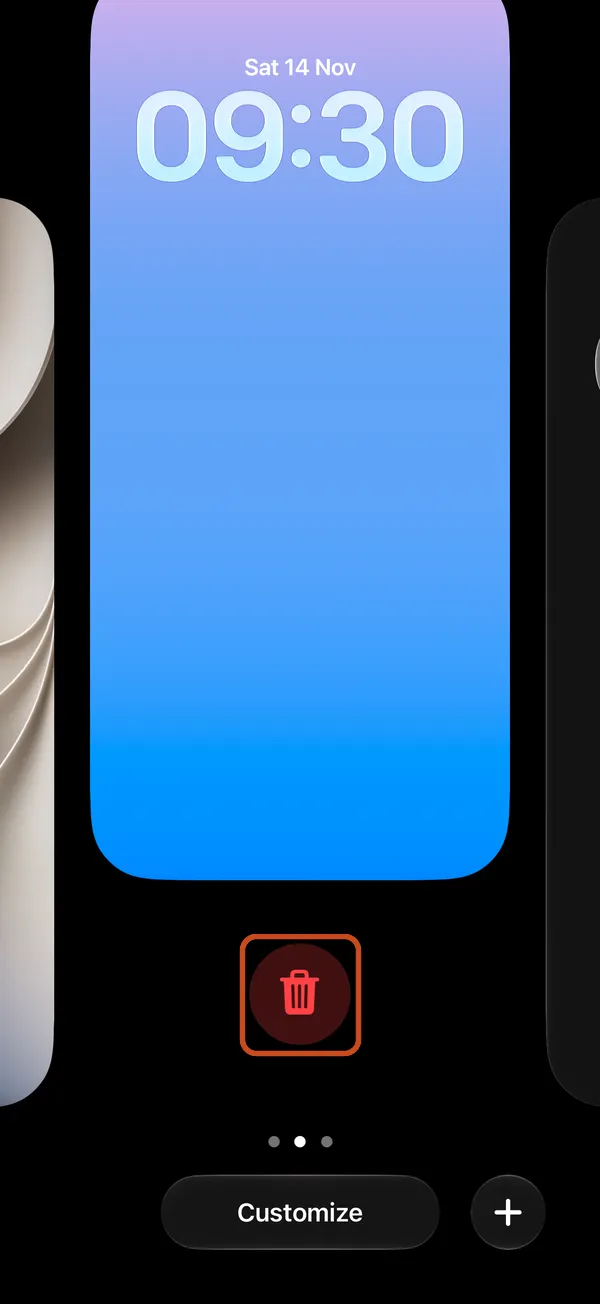 Swiped up
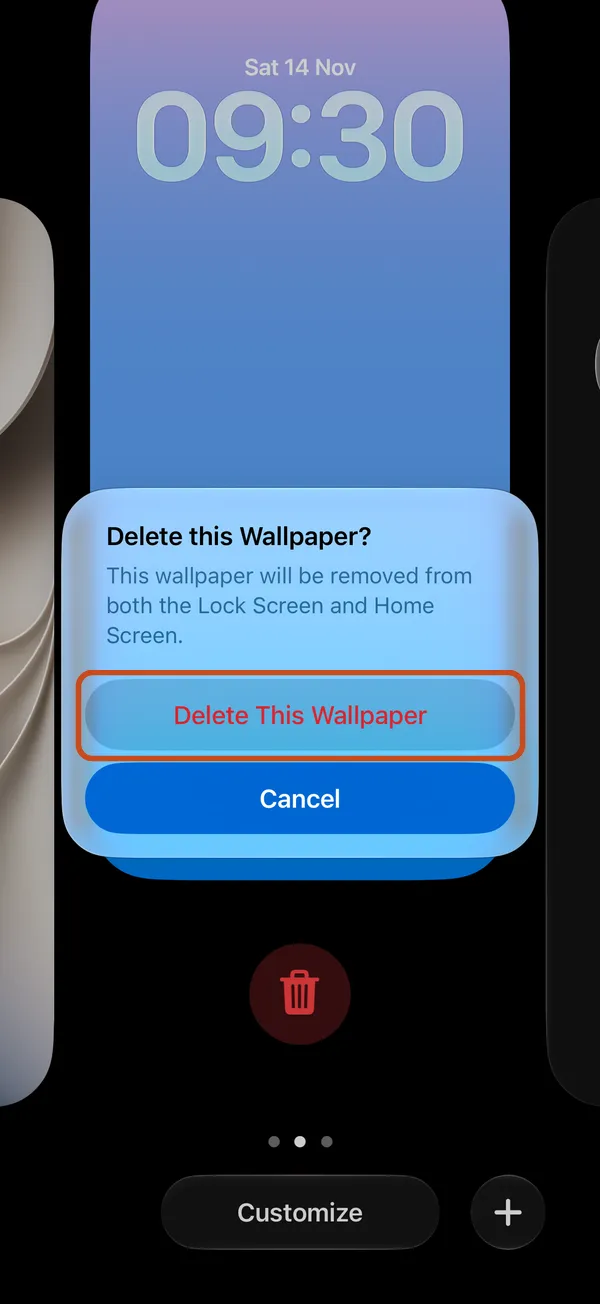 Delete This Wallpaper
iOS always keeps one Lock Screen that isn’t linked to a Focus. If you try to delete that one, it says This Lock Screen Can’t Be Deleted: add another Lock Screen first. What that message means.
From Settings instead
Settings › Wallpaper shows your current Lock Screen and Home Screen, with Add New Wallpaper to make another. It opens the same gallery and editor. The simulators have no Wallpaper row in Settings; Calpaper’s setup guide shows it on an iPhone with iOS 27.
Questions
How many Lock Screens can I have?
Apple doesn’t say. When you reach the limit, iOS says Wallpaper Limit Reached and asks you to delete one first.
Can each Lock Screen have its own widgets and buttons?
Yes. Each keeps its own wallpaper, clock, widgets and buttons, so you can set one up for work and another for the weekend.
Can I see my whole day’s calendar on the Lock Screen?
Apple’s Calendar widget shows your next event. For the whole day, the wallpaper itself has to show it: how to see your whole day on the Lock Screen.
Something went wrong when I set the wallpaper.
Each message iOS can show, and its fix: “Unable to set wallpaper” on iPhone.
A Lock Screen with your day on it
Calpaper is an iPhone app that draws today’s events, reminders, a note and countdowns into your Lock Screen wallpaper each morning, in the colours and fonts you choose, under the clock and widgets you set up here.
Before you download:
- It needs an iPhone with iOS 18 or later.
- Setup uses Apple’s Shortcuts app, once, for a few minutes: 5 steps on iOS 27, 10 on iOS 18–26 (see them for your version).
- You make one more Lock Screen for it, from Photos, with any photo: Shortcuts can’t put a picture on a Color or Emoji wallpaper.
- It’s a picture redrawn each morning and whenever you tap Update, not a live widget.
- Events, reminders, a note, the month, one countdown and seven text sizes are free. Photo backgrounds, tomorrow beside today and the extra styles are Calpaper Pro, one purchase, never a subscription.