How to see your whole day on the iPhone Lock Screen
Apple’s labels checked against iOS 18.0, 26.5 and 27.0’s own strings, and Calpaper’s against version 1.9 · Updated
Short answer
Apple’s Calendar widget on the Lock Screen shows your next event. To see the whole day, all-day events included, the day has to be part of the wallpaper: an app draws it into a picture, and a Shortcuts automation sets that picture each morning. Calpaper does this, and the daily calendar wallpaper is free. It redraws the picture each morning and whenever you tap Update.
What Apple’s widget shows
The Lock Screen’s Calendar widget follows one thing: what’s next. iOS describes it as “Track your next upcoming event.”
- To add it, in Apple’s steps: touch and hold the Lock Screen until Customize appears, tap it, tap Add Widgets, then tap or drag the Calendar widget you want and tap Done.
- All-day events: people report that it leaves them out. A question on Apple Community, “Show all day events in iPhone Calendar widget” (7 October 2023), has 200 “Me too”. The person asking saw all-day events in the Home Screen widget but not on the Lock Screen, and an Apple Community Specialist answered that “it seems this is expected if using a personalized Lock Screen”.
The widget’s description and the Customize and Add Widgets labels come from iOS 18.0, 26.5 and 27.0’s own strings, and the thread was read on 12 November 2026. We didn’t put the widget on a simulator’s Lock Screen, so we haven’t seen for ourselves which events it shows on iOS 26 or 27.
A wallpaper with your day
iOS doesn’t let apps change the wallpaper, but Apple’s Shortcuts app can. A calendar wallpaper app draws your day into a picture, and a daily Shortcuts automation sets that picture as the wallpaper before you wake. It reads the iPhone’s own Calendar, so Google and Outlook calendars show once their accounts are added in Settings › Apps › Calendar › Calendar Accounts (Outlook, step by step).
What a Calpaper wallpaper can show, free unless marked:
- Today’s events, all-day ones first, marked All day, then each event with its start and end. If birthdays and holidays crowd the day, switch off All-day events in Content › Events.
- As a list or a timeline (Style), with each event’s calendar name under it (Calendar names) and its colour (Color bars) if you want them.
- Your Apple Reminders: due today first, then overdue, then those with no date.
- A note or a list, one item a line, and the month, or this week with Calpaper Pro.
- On a calm colour, or on your own photo with Calpaper Pro.
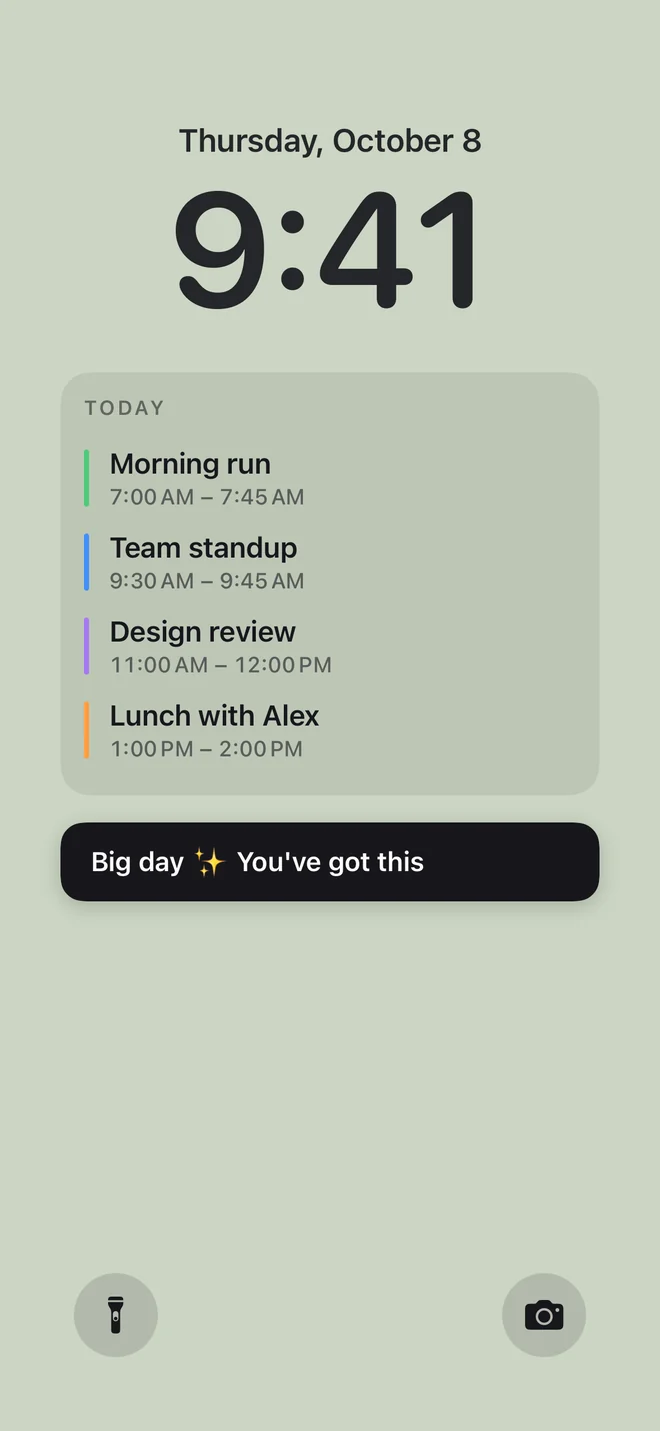
The Lock Screen is what an iPhone has in place of a screen saver, and a wallpaper is there every time you look at it, on an Always On display too.
When your day doesn’t fit
A wallpaper has only so much room under the clock. When a day is too full, Calpaper says so on the wallpaper instead of cutting it off: the events and the reminders end in “+N more”, and a long note’s last line ends in “…”. In the editor, the block’s panel says what doesn’t fit. Two ways to fit more:
- Make the text smaller. Look › Text size has seven sizes, from Smallest to Largest, with Standard in the middle. At the smaller sizes more events, reminders and lines of a note fit. It’s free, from Calpaper 1.9.
- Hide what you don’t need today. Each block’s panel in Content has a Show on wallpaper switch.
Tomorrow too
Two ways to see tomorrow on the Lock Screen:
- Tomorrow when today’s done (free, in Content › Events): after your last event, the next wallpaper shows tomorrow’s events under TOMORROW. It reaches the Lock Screen at the next run, so tap Update in the evening, or add an evening time to your automation (how).
- 2 days (Calpaper Pro, in Content › Events › Days): today’s events and tomorrow’s side by side, all day long, each title on up to two lines. Tomorrow sits beside today without calendar names, and a smaller text size fits more in each column.
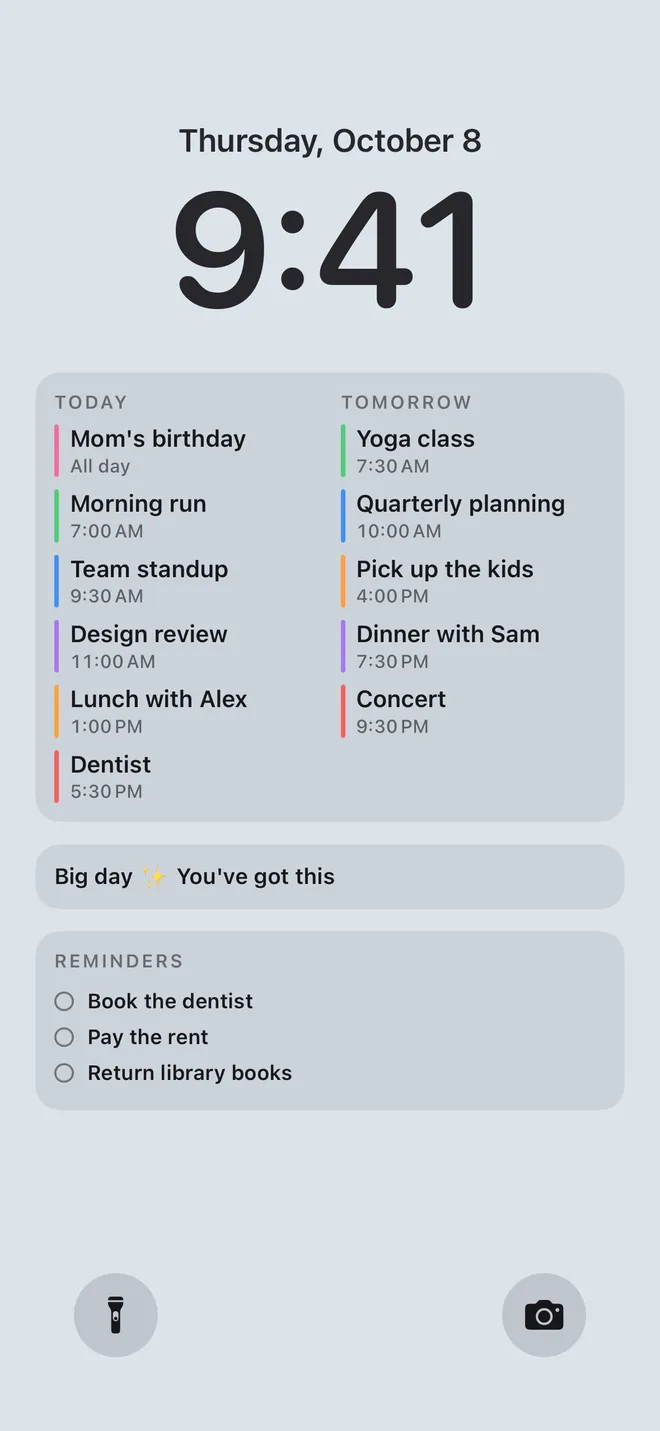
The widget and the wallpaper together
| Calendar widget | Calpaper wallpaper | |
|---|---|---|
| Shows | Your next event | The whole day: all-day events, reminders, a note, the month |
| Changes | Kept current by iOS | Each morning at the time you set, and whenever you tap Update |
| Setup | Customize the Lock Screen, then Add Widgets | The app, then a few minutes in Shortcuts, once |
| Cost | Built in | Free; Pro is one optional purchase |
You can keep both: the widget for what’s next, the wallpaper for the shape of the day.
What it can’t do
- A wallpaper is a snapshot. An event added at 11:00 shows at your next tap on Update, or the next morning. To keep it closer, see how to keep a calendar wallpaper up to date during the day.
- The clock stays where iOS puts it. Calpaper places the blocks under it; in Canvas, set Lock Screen clock to the size your Lock Screen uses.
- A calendar that lives only inside the Outlook or Google app, and never reaches the iPhone’s own Calendar, can’t be drawn.
Questions
Why does my Lock Screen calendar widget only show the next event?
That’s what it’s made for: iOS describes it as “Track your next upcoming event.” For the whole day, use a calendar wallpaper.
Why don’t all-day events show on my Lock Screen?
People report that the Lock Screen widget leaves them out (see above). A Calpaper wallpaper draws them first, marked All day, and All-day events in Content › Events leaves them off if you’d rather.
Can I have my calendar as a screen saver on my iPhone?
The iPhone has no screen saver setting: the screen you see before you unlock is the Lock Screen. Make your day its wallpaper.
Does it show Google and Outlook calendars?
Yes, once they’re in the iPhone’s own Calendar (Outlook, step by step). In Calpaper, Content › Events lists every calendar on the iPhone.
Will it drain my battery?
It’s a picture, shown as any wallpaper is. The iPhone draws it when the shortcut runs: each morning, and when you tap Update.
Your whole day, before you unlock
Calpaper is an iPhone app that draws today’s events, reminders and a note into your Lock Screen wallpaper every morning, with the month, a countdown or tomorrow if you want them.
Before you download:
- It needs an iPhone with iOS 18 or later.
- Setup uses Apple’s Shortcuts app, once, for a few minutes: 5 steps on iOS 27, 10 on iOS 18–26 (see them for your version).
- You give Calpaper a Photos wallpaper of its own, any photo: Shortcuts can’t put a picture on a Color or Emoji wallpaper.
- It’s a picture redrawn each morning and whenever you tap Update, not a live widget.
- Events, reminders, a note, the month, one countdown and seven text sizes are free. Photo backgrounds, tomorrow beside today and the extra styles are Calpaper Pro, one purchase, never a subscription.