Why didn’t my Shortcuts automation run?
Labels checked against Shortcuts’ own strings on iOS 18.0, 26.5 and 27.0, and the screens walked on those simulators · Updated
Short answer
On iOS 27, a shortcut’s time trigger runs only when its Automation switch is on and its time has been set, and a trigger that comes with a shared shortcut arrives switched off. On iOS 18–26, a Time of Day automation runs by itself only when it’s set to Run Immediately, and Shortcuts ticks Run After Confirmation for you. If it did run and nothing changed, it stopped at a question or a setting that needed you there.
We learned these setting up Calpaper’s own shortcut, which runs on the same daily triggers, on iPhones and in Apple’s simulators. They apply to any shortcut you want to run by itself.
First, did it run at all?
The quickest way to know is to make it run while you watch: set its time two minutes ahead, lock the iPhone and wait (test it in two minutes).
- Nothing happens, or a notification asks you to run it: the trigger is off, or it waits for you. Read the section for your iOS version. Settings › General › About shows which one you have.
- It starts, then stops or asks something: read It ran, but nothing changed.
iOS 27: the switch and the time
On iOS 27 an automation lives inside the shortcut, as a trigger above its actions. Shortcuts says so itself in its What’s New on iOS 27: “Automations are now built directly into your shortcuts, including the ones you share.” Two things keep a time trigger from running: its switch, and a time that was never set.
Open the shortcut: touch and hold its tile and tap Edit. If Describe a change opens instead, tap Edit at the top right to reach the actions. Look at the top: a trigger that’s off says Automation is turned off above its time. A shortcut added from an iCloud link arrived like that on the iOS 27.0 simulator, while a trigger we added by hand was on. Then:
- Tap the circled › next to the time.
- Turn Automation on. Check that Repeat says Every Day.
- Check the time. If the box at the top says Configure “Time” to enable this automation., the time was never set. The wheels open on the current time, but the trigger counts only once a wheel moves: if the time you want is already showing, turn a wheel away and back. The trigger should then read At 6:00 AM, or your time.
- Save: tap ‹ at the top left.
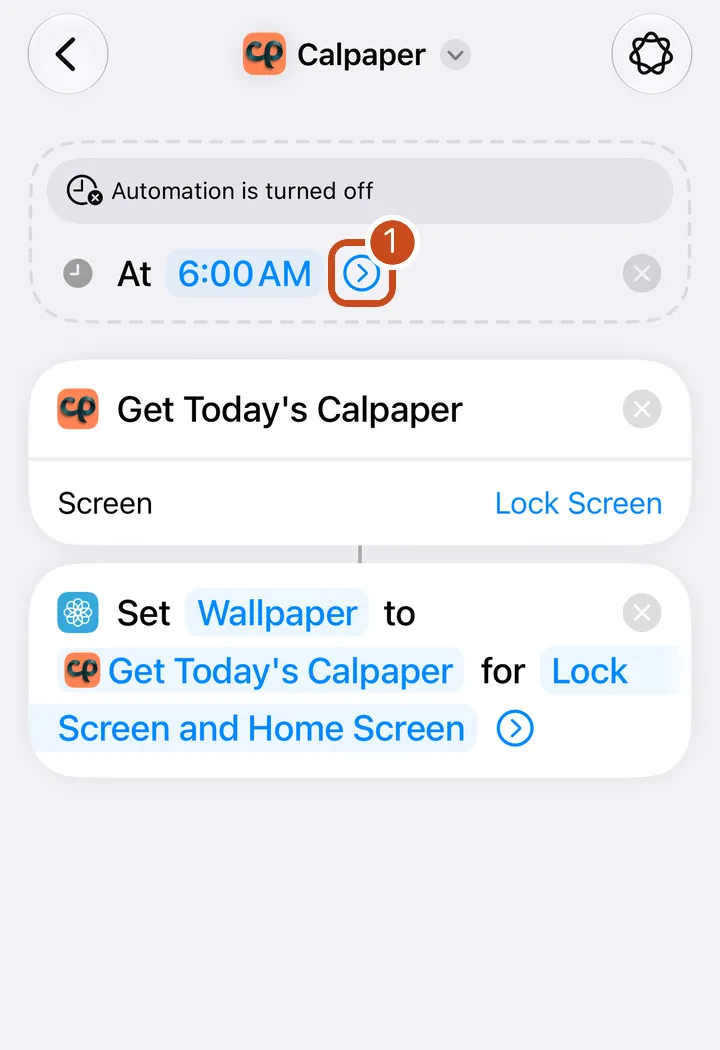 As it arrives
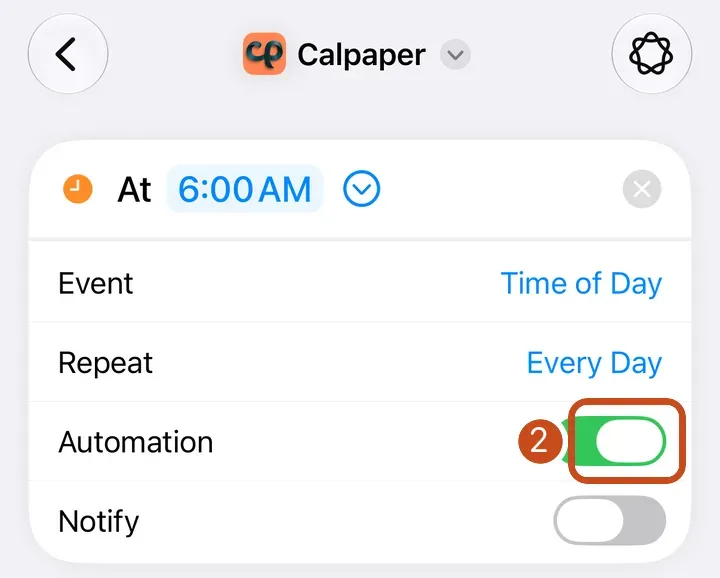 Switched on
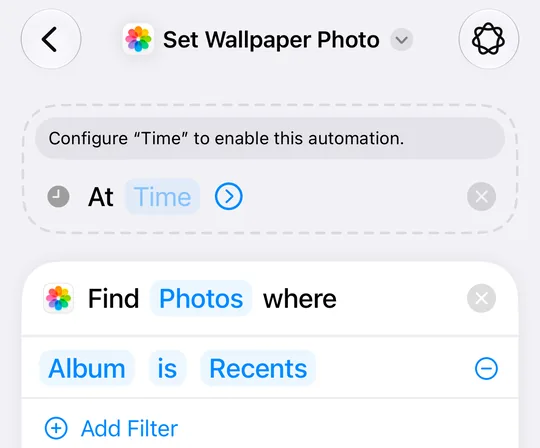
Why it catches people out: a trigger that arrives off looks like part of the shortcut, folded behind its ›, and nothing says it’s off until a morning goes by without a run.
iOS 18–26: Run Immediately
On iOS 18–26 the time is a separate automation in Shortcuts’ Automation tab, and it runs by itself only when it’s set to Run Immediately. When you make one, Shortcuts ticks Run After Confirmation for you: it did on the iOS 18.0 and 26.5 simulators, for Time of Day and App automations alike. Left that way, iOS asks with a notification at the time and waits for a tap, so nothing happens while you sleep.
- Open it. In Shortcuts, tap Automation at the bottom, then tap your automation.
- Read the top row. It should say Automation and Run Immediately. If it says Run After Confirmation or Don’t Run, tap it, choose Run Immediately and tap Done. This screen is the only place that shows it.
- Check what it runs. Under Do is the shortcut it runs. When you make the automation, choose your shortcut’s tile under My Shortcuts: an app’s row further down the list runs that one action on its own. For Calpaper, the Calpaper tile sets the wallpaper; the Calpaper app’s row below it only makes the picture and never sets it.
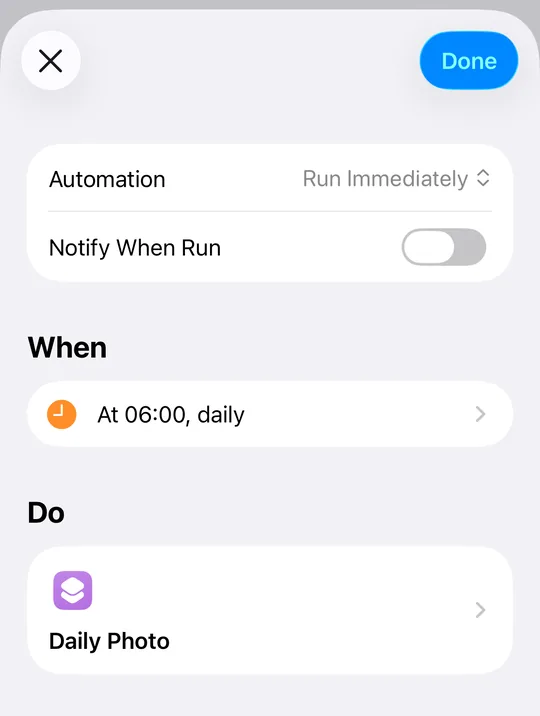
Making a new one? Run Immediately can be out of sight
On iOS 26, on an iPhone 17 Pro, the Time of Day screen opens with Run After Confirmation ticked at the very bottom and Run Immediately just below the edge. Swipe up on Daily to bring it into view, since a swipe on the time wheels changes the time instead. Then choose Run Immediately, tap Next and tap your shortcut’s tile.
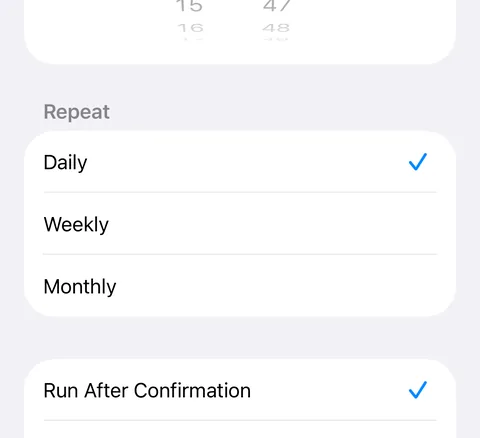 As it opens
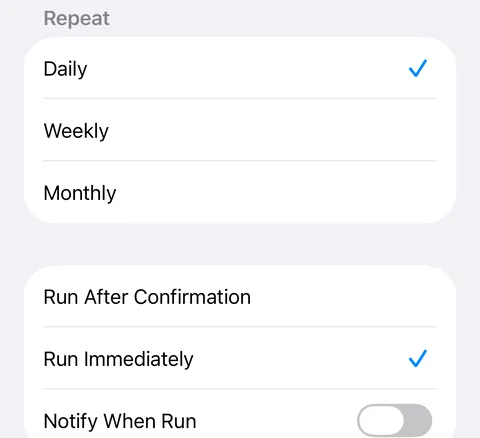 After a swipe on Daily
It ran, but nothing changed
A run you start yourself can stop and ask you things. A run at 6:00 has nobody to ask, so it ends without a word. These are the stops we’ve met with Apple’s Set Wallpaper Photo, on iPhones and simulators:
- A permission question. A shortcut that uses an app’s action asks on its first runs, for example Allow “Calpaper” to set a wallpaper? (the name in quotes is your shortcut’s). Run it once with ▶ and tap Allow. Where Always Allow is offered, choose it: Allow Once covers only that run, so the next unattended run asks again.
- Show Preview on. The action then waits for a tap that never comes. Tap the circled › in Set Wallpaper Photo and turn Show Preview off, and Crop to Subject too, which zooms in on the picture.
- No wallpaper picked, or not a Photos one. Choose the wallpaper in the action’s Wallpaper slot. It has to be one made from Photos: on a Color or Emoji wallpaper Shortcuts stops with “Photos cannot be set on the selected wallpaper” (the fix). A shared shortcut never brings a wallpaper choice with it: the slot needs yours.
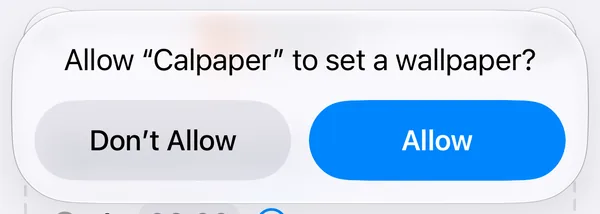 First run
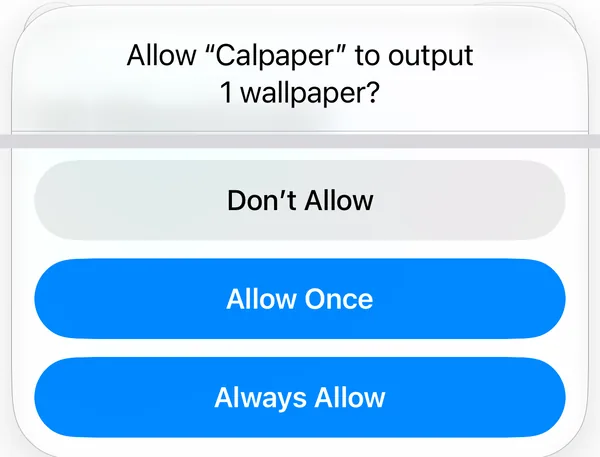 Started from another app
Test it in two minutes
- Note the time your automation runs.
- Set it two minutes ahead. On iOS 18–26, open the automation and tap its time under When. On iOS 27, open the shortcut and tap the time in its trigger.
- Lock the iPhone and wait.
- Afterwards, set the time back. On iOS 27 that moves a wheel too, so the trigger stays set.
If it runs, the trigger is fine, and the same automation will run at its time. If it runs and the wallpaper doesn’t change, look at the stops above. To see each run as it happens, turn on Notify When Run (iOS 18–26) or Notify (iOS 27, under the trigger’s ›) first.
What it can’t do
- No hourly trigger. On iOS 18–26, Time of Day repeats Daily, Weekly or Monthly. For more runs in a day, add more times: see keep a calendar wallpaper up to date during the day.
- Apps can’t see your automations. iOS gives apps no way to list or switch on a shortcut’s trigger, so an app like Calpaper can tell that a morning run didn’t arrive, but not which switch is off.
- We checked these screens in English. Some labels differ by language; the words for Spanish and Traditional Chinese are in our setup guides.
Questions
Why does my automation ask before running?
On iOS 18–26 it was saved as Run After Confirmation, which Shortcuts ticks for you. Open it in the Automation tab, tap the top row and choose Run Immediately.
Where is Run Immediately on iOS 26?
While you make the automation, it can sit just below the bottom edge of the Time of Day screen: swipe up on Daily. Once it’s saved, the automation’s top row shows it.
Where’s the Automation tab on iOS 27?
On iOS 27 automations live inside the shortcut, as a trigger above its actions. Open the shortcut and look at its top.
It works when I tap ▶. Why not at 6:00?
▶ can stop and ask you things; at 6:00 nobody answers. Check the trigger (iOS 27) or Run Immediately (iOS 18–26), then the three stops.
Does an automation run while the iPhone is locked?
Yes, a Time of Day automation does. That’s how Calpaper’s wallpaper arrives each morning.
Your day as the wallpaper, every morning
Calpaper is an iPhone app that draws today’s calendar, reminders and a note into your Lock Screen wallpaper, through a shortcut on the same kind of daily trigger. It watches the morning run for you: its status icon says Check when the wallpaper hasn’t changed for more than a day, and if the first morning after setup goes by without a run, from 9:00 it says which setting to look at.
Before you download:
- It needs an iPhone with iOS 18 or later.
- Setup uses Apple’s Shortcuts app, once, for a few minutes: 5 steps on iOS 27, 10 on iOS 18–26 (see them for your version).
- You give Calpaper a Photos wallpaper of its own, any photo: Shortcuts can’t put a picture on a Color or Emoji wallpaper.
- It’s a picture redrawn each morning and whenever you tap Update, not a live widget.
- Events, reminders, a note, the month, one countdown and seven text sizes are free. Photo backgrounds, tomorrow beside today and the extra styles are Calpaper Pro, one purchase, never a subscription.