How to keep a calendar wallpaper up to date during the day
Shortcuts steps checked on iOS 18.0, 26.5 and 27.0 in a simulator walk, and the labels against Shortcuts’ own strings · Updated
Short answer
A calendar wallpaper is a picture, redrawn only when its shortcut runs. To keep it current, run the shortcut more often: each time you close the Calendar app, or at more times of day. In Calpaper, Update redraws it at once.
These are ways people who use Calpaper keep theirs current. The Shortcuts steps work for any shortcut that sets the wallpaper, Calpaper’s or one you built yourself.
Why it falls behind
The wallpaper is drawn when the automation runs, usually first thing in the morning. A meeting added at 10:00, or a reminder ticked off at noon, reaches the picture at the next run. Calpaper notices: when today’s calendar or reminders no longer match the wallpaper, its status icon at the top left turns into an amber Update.
1. When you close Calendar
An App automation runs the shortcut each time you leave the Calendar app, so the change you just made is on the Lock Screen the next time you lock the iPhone. In Shortcuts’ own words on iOS 27, it “Automatically runs this shortcut when the specified app is opened or closed.”
iOS 18–26
- In Shortcuts, tap Automation at the bottom, then New Automation. If you already have automations, tap + at the top right instead.
- Scroll down the list and tap App.
- Tap Choose, tap Calendar, then Done (on iOS 26, ✓).
- Tick Is Closed and untick Is Opened, which comes ticked.
- Choose Run Immediately. Shortcuts ticks Run After Confirmation for you, which would ask you each time. Tap Next.
- Under My Shortcuts, tap your wallpaper shortcut’s tile: for Calpaper, the Calpaper tile, not the Calpaper app’s row further down, which only makes the picture.
Then open the new automation from the list: its top row should say Run Immediately.
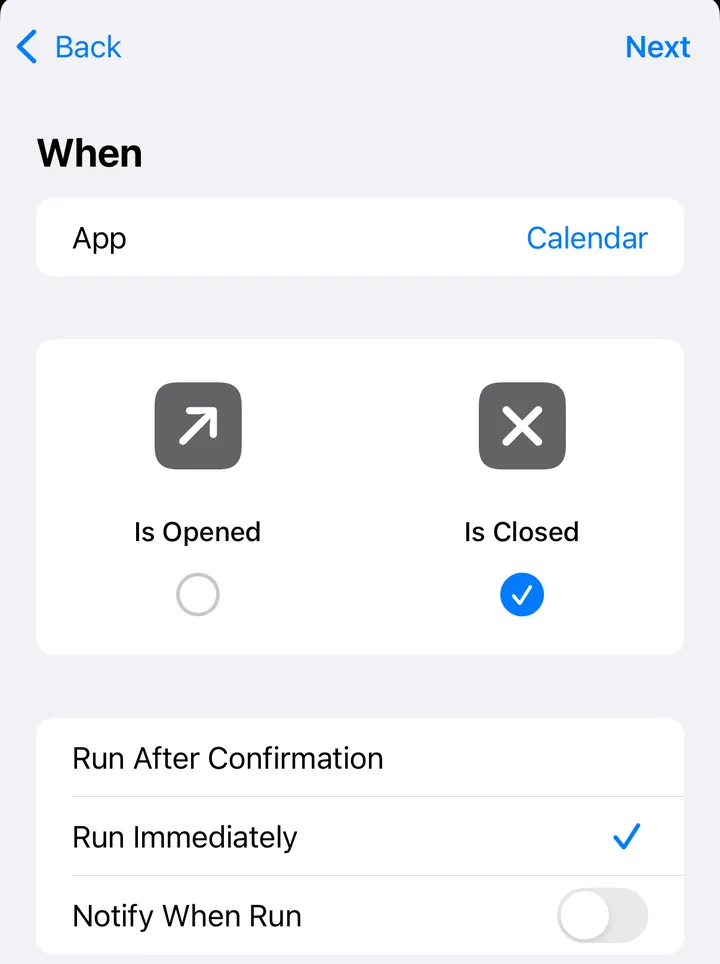 iOS 18.0
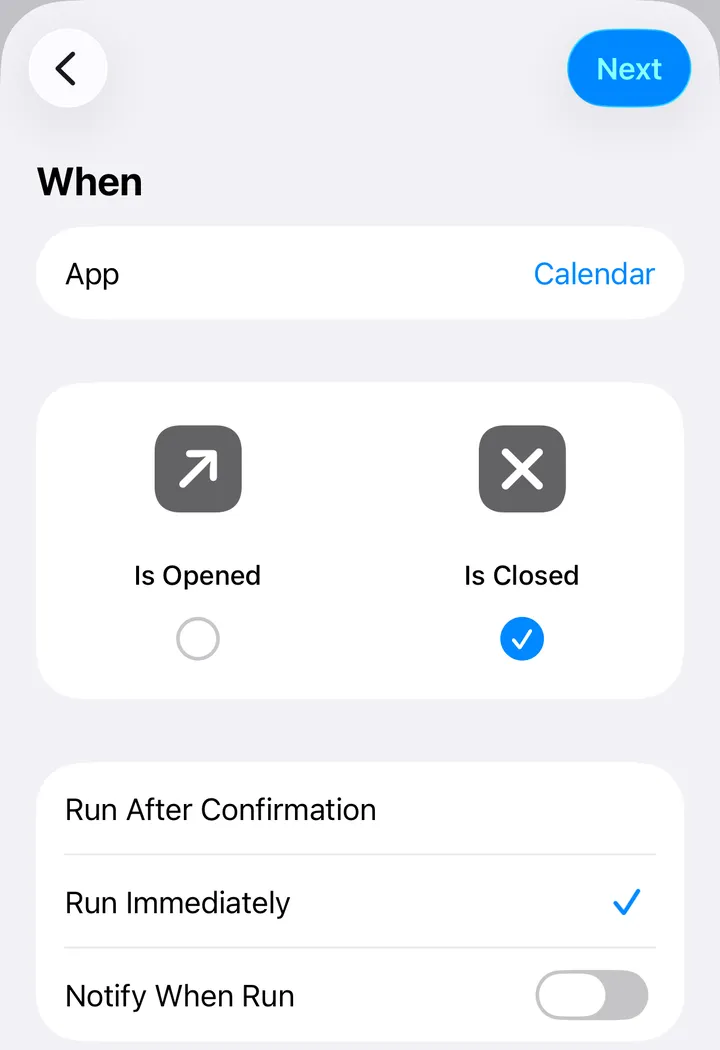 iOS 26.5
iOS 27
On iOS 27 an automation is a trigger inside the shortcut, and one shortcut can carry more than one: a new trigger joins the first with “or”, so the shortcut keeps its name and its morning time.
- Open the shortcut: touch and hold its tile and tap Edit. If Describe a change opens, tap Edit at the top right.
- Tap Search at the bottom, then Automation, then scroll to App and tap it. A second trigger appears: When App is Opened.
- Tap App and choose Calendar. Tap Opened and choose Closed.
- Tap the new trigger’s circled ›: Automation should be on. One we added by hand came on by itself; the 6:00 trigger that comes with a shared shortcut is off until you turn it on (how).
- Tap ‹ to save.
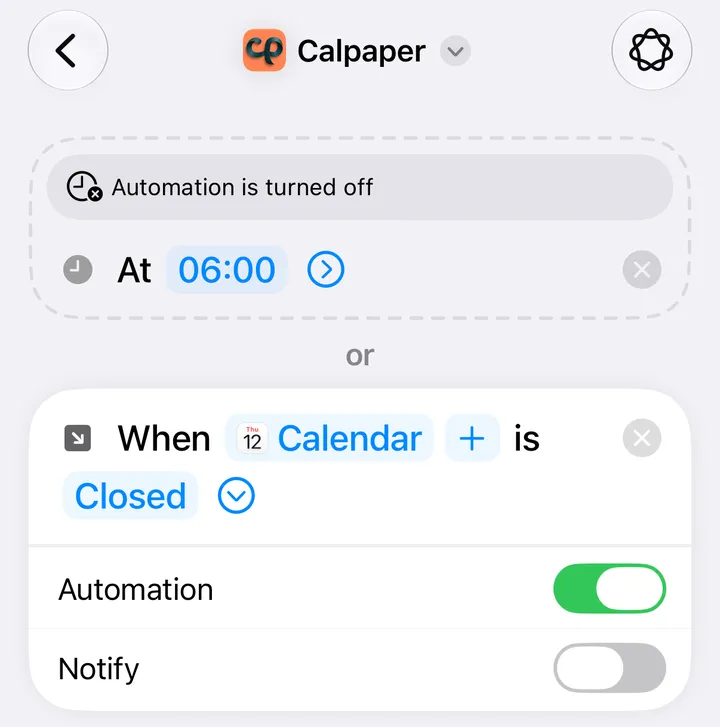
If you tick things off in Reminders, do the same for Reminders: one more automation on iOS 18–26, one more trigger on iOS 27.
2. More times of day
Add a second time, say 12:00 or 18:00.
- iOS 18–26: another Time of Day automation, set up like the first: Run Immediately, then your shortcut’s tile under My Shortcuts.
- iOS 27: another trigger in the same shortcut: Search, Automation, Time of Day. It reads Configure “Time” to enable this automation. until you tap Time and turn a wheel. Then check its circled ›: Repeat Every Day, Automation on.
- An evening time pairs well with Calpaper’s Tomorrow when today’s done (free, in Content › Events): after your last event, the evening run puts tomorrow’s events on the Lock Screen.
- Sunrise and Sunset are there too: at the top of the Time of Day screen on iOS 18–26, and under the trigger’s Event on iOS 27.
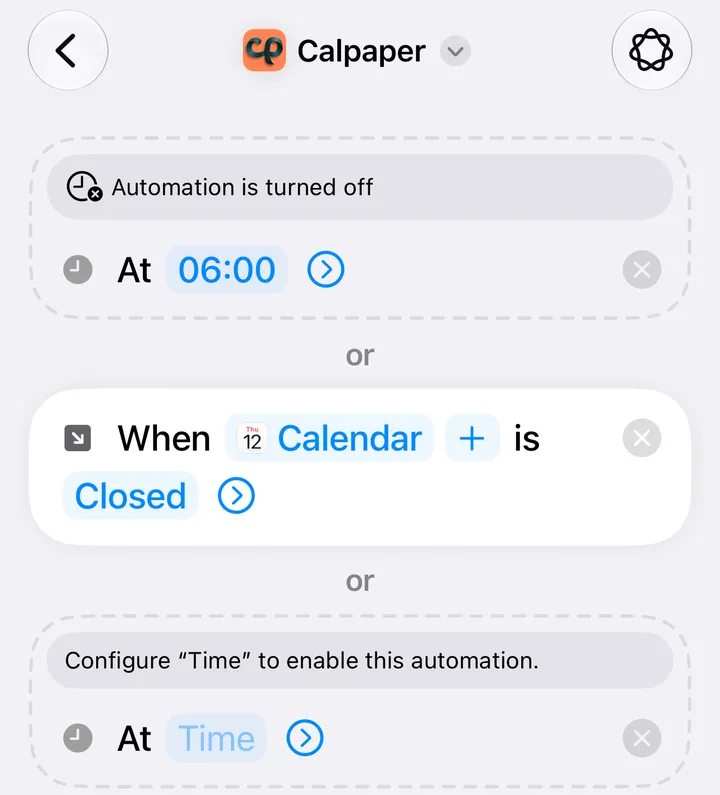
3. Update in Calpaper
- In the app: tap the status icon at the top left, then the button in its bubble: Update wallpaper when the icon says Update, Update now when it’s a green check. Shortcuts runs Calpaper and comes back.
- From the Home Screen: touch and hold Calpaper’s icon and choose Update wallpaper.
- The first time, Shortcuts asks Allow “Calpaper” to output 1 wallpaper?: choose Always Allow, since Allow Once makes the morning run ask again with nobody there.
We walked the Shortcuts steps on this page on the iOS 18.0, 26.5 and 27.0 simulators on 12 November 2026, in English, up to saving. We didn’t wait there for the new triggers to fire: a simulator can’t set a photo wallpaper.
What it can’t do
- It isn’t live. Each way above is one more run, not a wallpaper that follows the calendar by itself. Shortcuts has no automation for “my calendar changed”.
- No hourly option. On iOS 18–26, Time of Day repeats Daily, Weekly or Monthly. Several times means several automations, or on iOS 27 several triggers.
- Every run replaces the same wallpaper’s photo, the one picked in the shortcut’s Set Wallpaper Photo.
- Each extra automation is one more switch. If one doesn’t run, the checks are in why didn’t my Shortcuts automation run?
Questions
Can a calendar wallpaper update live?
No. iOS lets only a shortcut change the wallpaper, and a shortcut runs when a trigger fires. More triggers bring it closer.
Can it update every hour?
Not with one automation. Add the times you care about: an automation each on iOS 18–26, a trigger each in the same shortcut on iOS 27.
Do I need to open Calpaper for these to work?
No. The automations run the shortcut by themselves.
Will Calpaper’s Update still find my shortcut?
Yes. Update runs the shortcut called Calpaper. On iOS 27 the new triggers sit inside that same shortcut; on iOS 18–26 the new automations run it.
Does this work with other wallpaper apps?
The triggers work for any shortcut, so yes, if that app’s wallpaper is set by a shortcut.
Today’s calendar as the wallpaper
Calpaper is an iPhone app that draws today’s events, reminders and a note into your Lock Screen wallpaper, each morning and every time its shortcut runs.
Before you download:
- It needs an iPhone with iOS 18 or later.
- Setup uses Apple’s Shortcuts app, once, for a few minutes: 5 steps on iOS 27, 10 on iOS 18–26 (see them for your version).
- You give Calpaper a Photos wallpaper of its own, any photo: Shortcuts can’t put a picture on a Color or Emoji wallpaper.
- It’s a picture redrawn each time the shortcut runs and whenever you tap Update, not a live widget.
- Events, reminders, a note, the month, one countdown and seven text sizes are free. Photo backgrounds, tomorrow beside today and the extra styles are Calpaper Pro, one purchase, never a subscription.