“Photos cannot be set on the selected wallpaper”
Error and fix checked in Shortcuts on iOS 18.0, 26.5 and 27.0 · Settings › Wallpaper steps as on iPhone, from Calpaper’s setup guide · Updated
Short answer: Set Wallpaper Photo can only change a wallpaper made from Photos. It stops with this when its Wallpaper slot points anywhere else: a Color or Emoji wallpaper, or a choice made on another iPhone. Fix: add a Photos wallpaper, then choose it in the action’s Wallpaper slot.
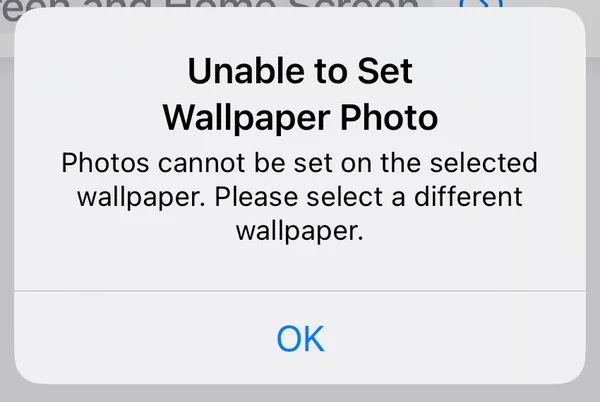 iOS 18.0
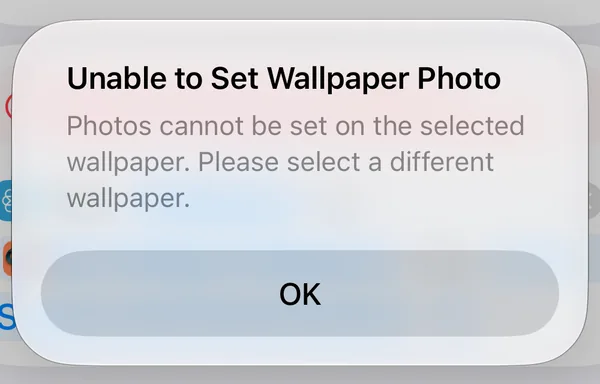 iOS 27.0
What you see
A shortcut with Apple’s Set Wallpaper Photo action stops, and Shortcuts shows an alert with these words:
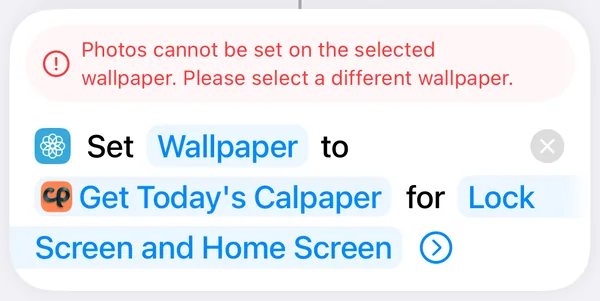
After OK, the same sentence stays in red above the action, so you can see which one stopped. An automation running on its own may show you nothing: the wallpaper just doesn’t change.
The fix, step by step
Give the shortcut a Photos wallpaper of its own, then choose that wallpaper in the action. The steps are the same on iOS 18–26 and iOS 27 except where noted.
- Add a Photos wallpaper. Open Settings › Wallpaper › Add New Wallpaper, tap Photos and pick any photo. Tap Add, then Set as Wallpaper Pair. The shortcut will replace this wallpaper’s photo each time it runs, so your other wallpapers stay as they are.
- Open the shortcut in the editor. On iOS 18–26, tap ⋯ on its tile in the Shortcuts tab (called Library on iOS 26). On iOS 27, touch and hold its tile and tap Edit; if Describe a change appears, tap Edit at the top right.
- Tap the word after “Set” in Set Wallpaper Photo. The action reads Set Wallpaper to … for Lock Screen and Home Screen. That first word after Set is the Wallpaper slot: it says Wallpaper, or the name of the wallpaper it points at, such as Wallpaper 2. Older tutorials call it Current; on iOS 18.0, 26.5 and 27.0 it reads Wallpaper.
- Choose the Photos wallpaper. Tap the circle under the wallpaper you added, then Done on iOS 18, or ✓ on iOS 26 and 27. If a wallpaper’s circle won’t take a tick, it isn’t one the action can use.
- Turn off Show Preview and Crop to Subject. Tap the circled › at the end of the action. It unfolds Show Preview, Crop to Subject and Legibility Blur, all three on in a new action. Turn the first two off; Legibility Blur can stay on.
- Run it once and save. Tap ▶ and answer Allow to any question (see below). Then save: Done on iOS 18, ‹ on iOS 26 and 27.
The simulators have no Wallpaper row in Settings, so step 1 is written as Calpaper’s setup guide has it for iPhones. Steps 2 to 6 were done on the iOS 18.0, 26.5 and 27.0 simulators: with a Photos wallpaper chosen, ▶ ran to the end without the error.
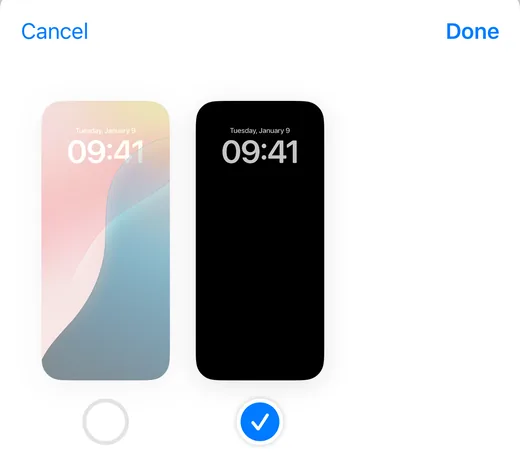 iOS 18.0: Done
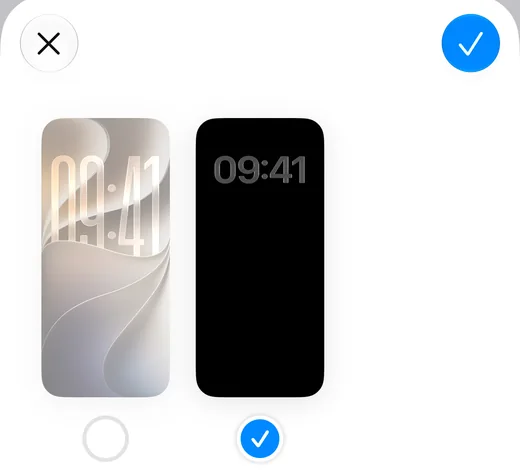 iOS 27.0: ✓
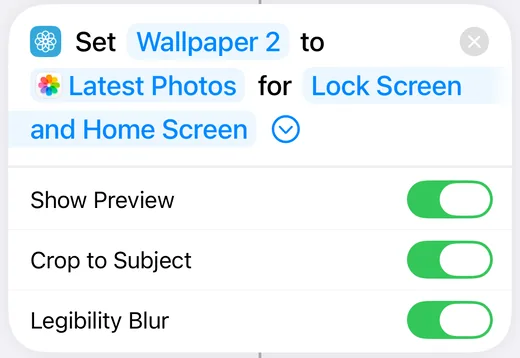 As added
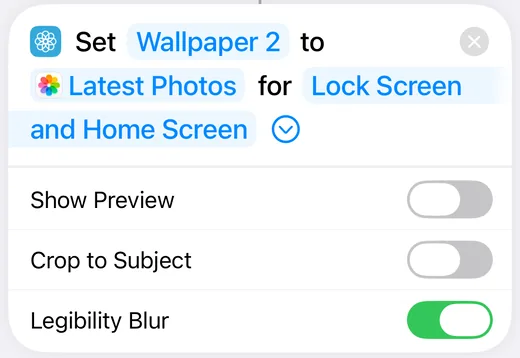 Ready to run unattended
Why it happens
Set Wallpaper Photo doesn’t make a wallpaper: it replaces the photo inside a wallpaper you already have, the one in its Wallpaper slot. A Color or Emoji wallpaper has no photo to replace, so the action stops.
The slot is easy to get wrong because it always reads Wallpaper until you choose. In a new action the word is pale: nothing is chosen. In a copy added from an iCloud link it reads Wallpaper in blue, which looks set, but the choice was made on the iPhone it was shared from and doesn’t travel. On the iOS 18.0, 26.5 and 27.0 simulators such a copy stopped with this error; on 18.0 and 27.0 we then chose the simulator’s own Photos wallpaper, and it ran through.
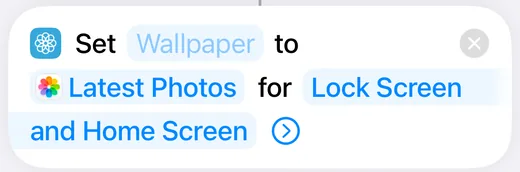 New action: nothing chosen
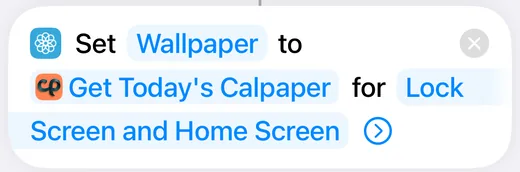 Shared copy: looks chosen
Other ways Set Wallpaper Photo stops
A run you start can stop and ask you things; a run at 6:00 has nobody to ask, so it fails without a word. These are the ones we met on the simulators while checking this page.
- Show Preview or Crop to Subject on. With Show Preview on, ▶ opened Apple’s wallpaper editor, with Cancel and Done (on iOS 27.0, after a photo picker), and waited for a tap. On iPhones, Crop to Subject zooms in on what iOS takes to be the photo’s subject. A new action has both on: turn them off (step 5).
- Nothing chosen in the Wallpaper slot. With the slot pale and Show Preview on, ▶ didn’t show the error: it opened the wallpaper editor, and after Done the action’s list had a new wallpaper. That needs you there, so choose the wallpaper in the action (step 4).
- A question on the first run. A shortcut we built from Apple’s own actions ran without asking, once Shortcuts could see the photos. One that also uses an app’s action asked two questions the first time, each with Don’t Allow and Allow, for example Allow “Calpaper” to run actions from “Calpaper”? and Allow “Calpaper” to set a wallpaper? The name in quotes is your shortcut’s. Answer them once with ▶, or the morning run waits on them.
- Allow Once instead of Always Allow. Started from another app, the same shortcut asked Allow “Calpaper” to output 1 wallpaper?, with Don’t Allow, Allow Once and Always Allow. Choose Always Allow: Allow Once covers only that run.
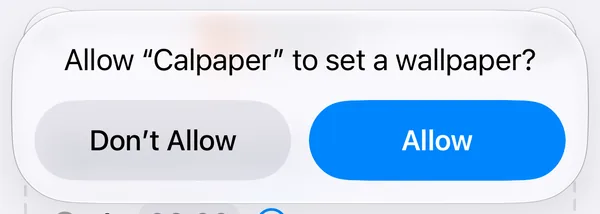 First run
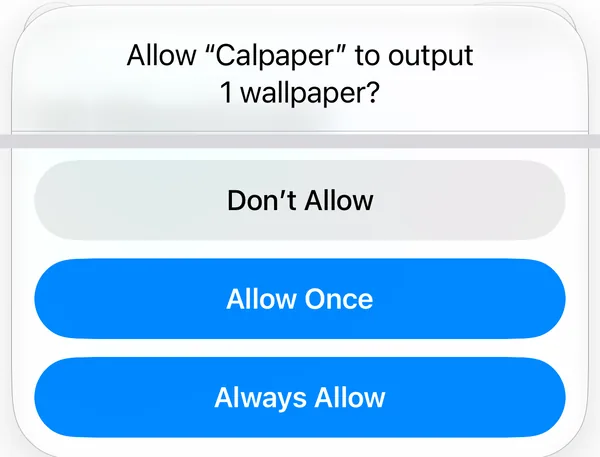 Started from another app
If ▶ works and the 6:00 run still does nothing, the automation itself may be the cause: on iOS 18–26 it can be saved as Run After Confirmation, and on iOS 27 a time that never moved leaves the trigger off. Why a wallpaper shortcut works with ▶ but not at 6:00 covers both.
What it can’t do
- An app can’t set your wallpaper. iOS gives apps no way to change it; Shortcuts can, with Set Wallpaper Photo, when a shortcut runs.
- The action can’t change a wallpaper’s kind. It changes the photo of a Photos wallpaper; it can’t put a photo on a Color or Emoji one.
- A Live Photo is set as a still. On an iPhone in October 2026, a Live Photo passed to Set Wallpaper Photo landed on the Lock Screen as a still image.
- What we couldn’t check on the simulators. They have no Wallpaper row in Settings and draw photo wallpapers black, so we saw the action run without the error but not the photo land. Color and Emoji wallpapers can’t be made there either: that they stop the action comes from setting up Calpaper on iPhones. Other kinds, such as Astronomy or Weather, we haven’t tried one by one.
Questions
Do I have to give up my favourite wallpaper?
No. Add a second wallpaper from Photos just for the shortcut. The action replaces only the photo of the wallpaper in its slot; your others stay as they are.
Why can’t I tick my wallpaper in the shortcut’s list?
Because it isn’t one the action can use. On the iOS 18.0, 26.5 and 27.0 simulators, only the wallpaper made from Photos took a tick. Add one in Settings › Wallpaper › Add New Wallpaper › Photos and it appears in the list.
The shortcut came from a friend or a website. What do I change?
Choose your own Photos wallpaper in its Wallpaper slot, check that Show Preview and Crop to Subject are off, then run it once with ▶ and answer its questions. The wallpaper choice doesn’t travel with a shared shortcut.
It works when I tap ▶. Why not in the morning?
A run you start can stop and ask; the morning run can’t. Check the action’s switches and its Wallpaper slot here, then the automation’s own traps in the automation guide.
Can the shortcut set a Live Photo?
It sets it as a still image.
The same error in other languages
Apple’s sentence as iOS writes it in each language, read from the iOS 18.0, 26.5 and 27.0 tables (the same in all three).
Show the error in 12 languages
Español (España) No se pueden establecer fotos en el fondo de pantalla seleccionado. Selecciona otro fondo de pantalla.
Español (Latinoamérica) No se puede colocar fotos en el fondo de pantalla seleccionado. Selecciona otro fondo de pantalla.
Português (Brasil) Não é possível definir fotos na imagem de fundo selecionada. Escolha outra imagem de fundo.
Deutsch Auf dem ausgewählten Hintergrund können keine Fotos hinzugefügt werden. Wähle einen anderen Hintergrund aus.
Français Les photos ne peuvent pas être utilisées avec le fond d’écran sélectionné. Veuillez choisir un autre fond d’écran.
Italiano Impossibile impostare foto per lo sfondo selezionato. Scegline un altro.
日本語 選択した壁紙には写真を設定できません。別の壁紙を選択してください。
한국어 선택한 배경화면에 사진을 설정할 수 없습니다. 다른 배경화면을 선택하십시오.
繁體中文(台灣) 無法在所選背景圖片上設定照片。請選取其他背景圖片。
繁體中文(香港) 無法在所選背景圖片上設定相片。請選擇其他背景圖片。
简体中文 无法在选定墙纸上设定照片,请选择其他墙纸。
Türkçe Fotoğraflar seçili duvar kâğıdında ayarlanamıyor. Lütfen farklı bir duvar kâğıdı seçin.
Today’s calendar as the wallpaper
Calpaper, an iPhone app, uses this same Set Wallpaper Photo action to put today’s events, reminders and countdowns on your Lock Screen each morning. Before you get it:
- It needs an iPhone with iOS 18 or later.
- It uses Apple’s Shortcuts app for a one-time setup of a few minutes: 5 steps on iOS 27, 10 on iOS 18–26. The setup guide shows them for your version.
- You’ll add a Photos wallpaper just for Calpaper, any photo, as in step 1 above. From Calpaper 1.10 its setup guide asks “Added a Photos wallpaper?” before you leave for Shortcuts, and if its check still stops on this error, Calpaper says “Set Wallpaper Photo can’t use that wallpaper”: it needs a wallpaper made from a photo, added in Settings › Wallpaper › Add New Wallpaper › Photos, then picked in Set Wallpaper Photo. Its Show me how starts again from the step that adds one.
- It’s a picture redrawn each morning and whenever you tap Update, not a live widget.
- Events, reminders, a note, the month and one countdown are free. Your own photos as the background are part of Calpaper Pro, one purchase and never a subscription; you can try them in the preview first.