“Unable to set wallpaper” on iPhone: what each message means
Messages checked against iOS’s own text on iOS 18.0, 26.5 and 27.0 · Updated
Short answer
An iPhone has no single “unable to set wallpaper” error. It has a dozen messages, each from a different place: Shortcuts’ wallpaper actions, the Lock Screen gallery, the photo editor, Focus, and work or school iPhones. Find the words you saw below. Most fixes take one tap: choose a different wallpaper, delete one you don’t use, or connect to the internet.
Every message on this page is quoted as iOS writes it, read from the English text of iOS 18.0, 26.5 and 27.0. Where a message doesn’t say what causes it, we say what does and how we know.
In Shortcuts
Apple’s Set Wallpaper Photo action replaces the photo of a wallpaper you already have. When it can’t, Shortcuts shows an alert titled Unable to Set Wallpaper Photo with one of four messages. An automation running on its own may show nothing at all: run the shortcut with ▶ to see which one it is.
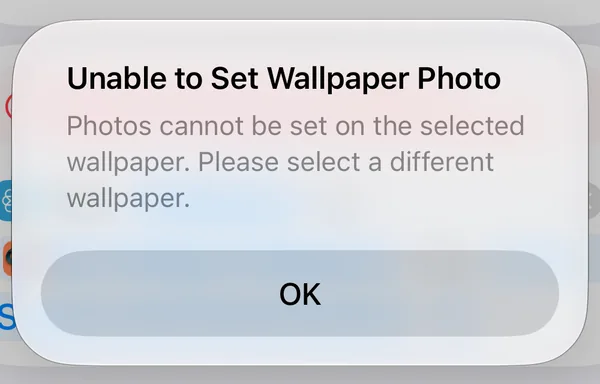
Photos cannot be set on the selected wallpaper
The wallpaper chosen in the action isn’t a Photos wallpaper on this iPhone: a Color or Emoji one, or a choice made on another iPhone that came with a shared shortcut. Add a wallpaper from Photos, then choose it in the action’s Wallpaper slot. The full fix, with Shortcuts’ screens.
Please select a wallpaper and try again
Nothing is chosen in the action’s Wallpaper slot, and the action is set for the Home Screen only. With nothing chosen, Set Wallpaper Photo makes a new wallpaper, but it can’t make one for the Home Screen alone. Tap the word after “Set” in the action and choose a Photos wallpaper. If your shortcut has a second Set Wallpaper Photo just for the Home Screen, as Calpaper’s matching Home Screen does, choose the same Photos wallpaper in its slot too.
How we know: iOS 18’s Shortcuts code names this exact case. The message is the same in iOS 18.0, 26.5 and 27.0.
Please provide an image to set as a wallpaper
No picture reached the action. Usually the action before it came back empty: an album with no photos, a Find Photos with filters nothing matches, or an app’s action that failed. Tap ▶ and look at each action’s result, from the top, to see where the picture disappears.
Please select a valid destination for your photo
The last word in the action, where the photo goes, isn’t one iOS knows. That can happen when it’s set from a variable or text. Tap it and pick Lock Screen, Home Screen or Lock Screen and Home Screen from the list.
Shortcuts was unable to find the specified wallpaper
This one comes from a different action, Switch Between Wallpapers, which changes to one of your Lock Screens. The Lock Screen it points at isn’t on this iPhone: it was deleted, or the shortcut was made on another iPhone. Tap the wallpaper in the action and choose one you still have. With nothing chosen, the same action says Please select a wallpaper.
Changing wallpaper is restricted on this device
Shortcuts says this when the iPhone is managed by a school or company that has switched off wallpaper changes. See work or school iPhones.
Adding or deleting a Lock Screen
These come from the Lock Screen gallery, the screen you reach by touching and holding the Lock Screen.
Wallpaper Limit Reached
iOS keeps a limited number of Lock Screens. Delete one you don’t use: touch and hold the Lock Screen, swipe to it, swipe it up, tap the red bin, then Delete This Wallpaper. Then add the new one. Deleting a Lock Screen, step by step.
Unable to Customize
The wallpaper is an old one, set before iOS 16 brought customizable Lock Screens, and iOS couldn’t convert it. Do what the message says: touch and hold the Lock Screen, tap + and make a new one.
Unable to Download Wallpaper
Some of Apple’s own wallpapers are downloaded the first time you choose one. Connect to Wi-Fi or mobile data and choose it again.
Unable to Install Wallpaper
On iOS 26 and 27 only: a wallpaper from the gallery didn’t finish installing. The quotes hold its name. Try again later, on a good connection.
Could Not Remove
On iOS 26 and 27: you’re removing a wallpaper you’re still using. Delete the Lock Screen that uses it first, then remove it.
Unlock to edit
The gallery needs your iPhone unlocked. Apple’s advice: “If you can’t log in to your wallpaper gallery with Face ID, touch and hold the Lock Screen again, then enter your passcode.” (Apple Support)
Lock Screens linked to a Focus
A Lock Screen can be linked to a Focus, such as Work or Sleep. Apple: “If a Lock Screen links to a specific Focus, switching from that Lock Screen to another also switches your Focus.” (iPhone User Guide) So a wallpaper that seems to change back by itself may be following a Focus.
iOS always keeps one Lock Screen with no Focus. If this is your only one, add another Lock Screen first; then you can link or delete this one. To unlink a Lock Screen, touch and hold it in the gallery and tap Focus at the bottom (more on Focus).
Setting a photo
These appear in the editor that opens when you make a wallpaper from a photo, from Photos’ Use as Wallpaper or the gallery’s Photos. If the photo itself is the problem, can’t set a photo as your iPhone wallpaper? goes further.
Failed to load Asset
The photo isn’t on the iPhone yet, typically one kept in iCloud, and iOS couldn’t download it. Connect to the internet and try again. If the message under the title is Could not load asset, iOS couldn’t open the photo; try again, then another photo. (The capital A is Apple’s.)
Unable to Save Wallpaper
Or Try again later. under the same title. The wallpaper was made but not saved. Connect, wait a moment, and tap Add again. For Photo Shuffle the title is Unable to Save Photo Shuffle, with the same two messages.
Photo Shuffle is Processing
Photos hasn’t finished going through your library, often after many new photos. Give it time and try again.
Motion Not Available
The photo can still be your wallpaper, just without its movement. Apple doesn’t publish which Live Photos qualify; try another one if you want motion.
Failed to load Spatial Scene
On iOS 26 and 27, a photo made into a Spatial Scene can fail with one of these under that title: Feature disabled in Settings., Not supported., Try again later., Unable to download model, not enough free disk space., Unable to download model, check your network connection and try again. or Unable to load model, try again later. Each says its own fix; with Not supported., use the photo without the effect.
Work or school iPhones
An organisation that manages iPhones can switch off wallpaper changes. Apple’s deployment guide says of that setting: “Users can’t modify the wallpaper for the Lock Screen or Home Screen.” It applies only to supervised iPhones, the ones a school or company owns and sets up (Apple Platform Deployment).
You’ll see Changing wallpaper is restricted on this device. in Shortcuts, Photos won’t offer Use as Wallpaper, and the management profile lists Wallpaper modification not allowed among its restrictions. Only the organisation can lift it. To see the profile, open Settings › General › VPN & Device Management.
No message, but something’s off
- The wallpaper doesn’t move. With Low Power Mode on, iOS turns off perspective zoom and moving wallpapers. Settings says so in its own words: “Dynamic wallpaper and perspective zoom are disabled when Low Power Mode is on.”
- Depth Effect is greyed out. The subject can’t overlap the clock if there are widgets under it: iOS says Remove widgets to use Depth Effect in portrait. On iOS 26 and 27 a stretched clock can block it too, with Make time smaller to use Depth Effect (how to make the clock smaller). Apple adds that layering “may not be available if the subject is too high or too low, or if it obscures too much of the clock.”
- A wallpaper shortcut works with ▶ but not in the morning. The automation didn’t run, or it stopped at a question nobody was there to answer: why a Shortcuts automation didn’t run.
Questions
Is there a size or format limit for wallpaper photos?
Apple doesn’t publish one. If a photo won’t load, try again on a connection first: most photos that fail are waiting to download from iCloud.
How many Lock Screens can I have?
Apple doesn’t give the number. When you reach it, iOS says Wallpaper Limit Reached and asks you to delete one.
Why does my wallpaper change back by itself?
Most often the Lock Screen is linked to a Focus, and the Focus turned on or off. Check the Lock Screen’s Focus button in the gallery. A shortcut or app that runs on a schedule, like Calpaper’s, can also change it.
I saw “Selected image cannot be set as wallpaper”. Is that iPhone?
No: that sentence isn’t in iOS 18, 26 or 27. What an iPhone says instead, and the fixes.
Today’s calendar as the wallpaper
Calpaper is an iPhone app that draws today’s events, reminders and a note into your Lock Screen wallpaper each morning, through the same Set Wallpaper Photo action. If its shortcut stops with one of the messages above, the app shows Shortcuts’ reason and takes you to the step that fixes it.
Before you download:
- It needs an iPhone with iOS 18 or later.
- Setup uses Apple’s Shortcuts app, once, for a few minutes: 5 steps on iOS 27, 10 on iOS 18–26 (see them for your version).
- You give Calpaper a Photos wallpaper of its own, any photo: Shortcuts can’t put a picture on a Color or Emoji wallpaper.
- It’s a picture redrawn each morning and whenever you tap Update, not a live widget.
- Events, reminders, a note, the month, one countdown and seven text sizes are free. Photo backgrounds, tomorrow beside today and the extra styles are Calpaper Pro, one purchase, never a subscription.