How to put your Outlook calendar on the iPhone Lock Screen
Settings path checked on iOS 18.0, 26.5 and 27.0, up to the sign-in · Updated
Short answer
Add your Outlook account to the iPhone’s own Calendar, in Settings › Apps › Calendar. Its events then reach the Lock Screen two ways: Apple’s Calendar widget shows your next event, and a calendar wallpaper, such as Calpaper’s, shows the whole day, redrawn every morning.
The Outlook app keeps its calendar to itself. Apple’s Calendar widget on the Lock Screen, and wallpaper apps such as Calpaper, read the iPhone’s own Calendar instead, so an Outlook event reaches them only once its account is in iOS. Outlook’s own option for copying its calendar to the phone, Sync Calendars, “is only supported with Outlook for Android”, in Microsoft’s words.
Nor did we find a Lock Screen widget for Outlook on iPhone: Microsoft’s support pages and the app’s App Store listing describe none (read on 2 November 2026), and people have been asking Microsoft for one since October 2022.
Add your Outlook account to the iPhone
You add it in Settings, under the Calendar app, with the same Microsoft account you use in Outlook. Steps 1 to 4 use the labels Settings showed on iOS 18.0, 26.5 and 27.0, in English; steps 5 to 7 come from Apple’s and Microsoft’s support pages.
- Open Settings, scroll down to Apps, and tap Calendar.
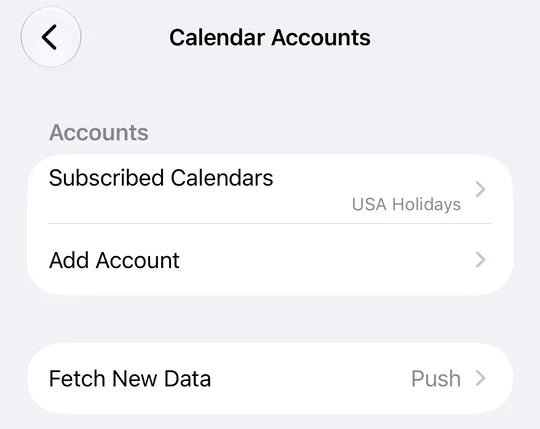
- Tap Calendar Accounts, then Add Account. On an iPhone with no account at all yet, the Calendar screen shows Add Account… in that place: tap it.
- On iOS 26 and 27, a screen asks to Enter your email address. Tap choose from a list. under the box to see the providers. On iOS 18 the list opens straight away.
- Pick Outlook.com for a personal Microsoft account (Hotmail and Live addresses are Outlook.com), or Microsoft Exchange for a work or school account on Microsoft 365 or Exchange. Don’t add it as a plain mail account under Other (Add Other Account… on iOS 26 and 27): IMAP and POP “are unable to sync calendar”, Microsoft says.
- Sign in. For Microsoft Exchange, Apple’s steps are to enter your email address, tap Next, then Sign In; an account with modern authentication then follows your organisation’s own sign-in (Apple). For Outlook.com, follow Microsoft’s prompts.
- Turn on Calendars for the account, then tap Save. In Apple’s words, “turn on the data you want to sync, then tap Save”.
- Open Apple’s Calendar app and tap Calendars at the bottom of the screen: the Outlook calendars are listed under the account (Microsoft’s step). Tick the ones you want to see in the Calendar app.
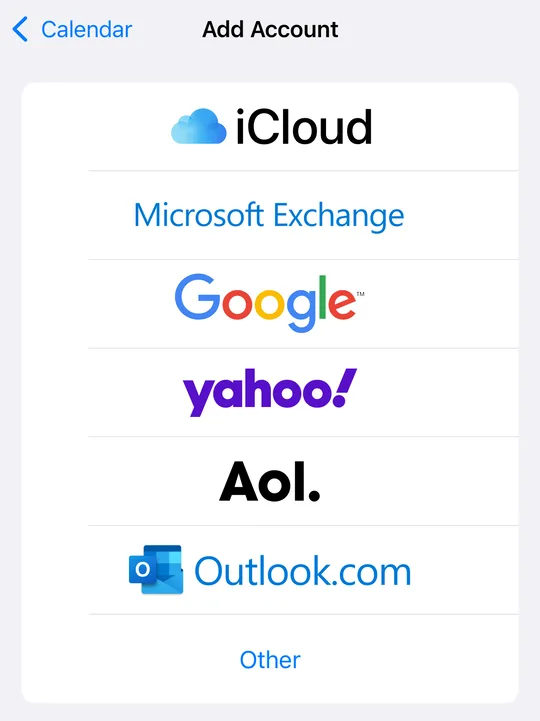 iOS 18.0
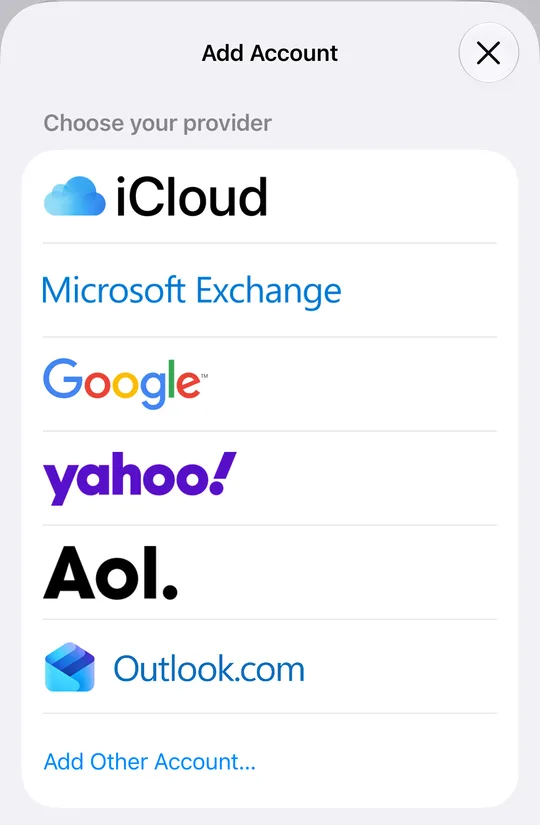 iOS 27.0, after “choose from a list.”
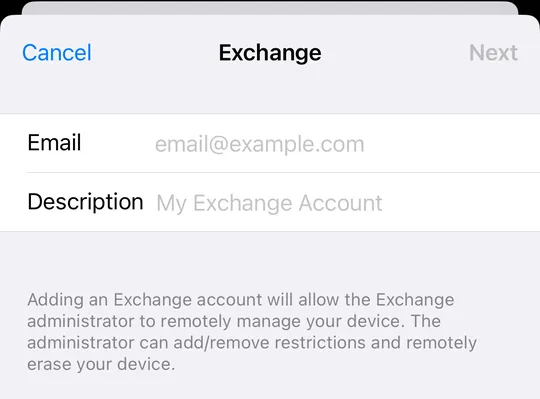
We stopped at this list (and, on iOS 18.0, the first Microsoft Exchange screen, shown below). A simulator has no Microsoft account to sign in with, so steps 5 to 7 follow Apple’s and Microsoft’s support pages rather than screens we saw. Apple also notes that away from a familiar location you must turn off Stolen Device Protection before adding an Exchange account, and turn it back on afterwards.
Which Outlook calendars come through
Your own calendars come through; calendars other people share with you depend on how they’re shared and on your organisation’s server.
- Your own calendars come through with either choice. For a calendar to sync to a phone at all, Microsoft says “you must have an email provider that uses Microsoft Exchange ActiveSync”, which is why it rules out IMAP and POP (Microsoft).
- Calendars shared with you are less certain. Microsoft’s page on calendar sharing in Microsoft 365 says that under its newer sharing model “shared calendars will sync to their mobile phones”, Exchange ActiveSync apps included, but “only for calendars shared between people using Exchange Online”. An answer on Microsoft Q&A (March 2025) says Apple’s Calendar syncs shared calendars “only when you have Delegate access”, and not view-only ones. If a shared, team or room calendar shows in Outlook and not in Apple’s Calendar, check with your IT department.
- A second account in the Outlook app, say work and personal, needs adding in Settings on its own. The Outlook app shows every account it holds in one agenda; the iPhone’s Calendar shows only the accounts added in Settings.
How fast new events arrive: Push and Fetch
An account that pushes gets new events as the server sends them; one on a fetch schedule waits for the next fetch, and with Automatically, in Apple’s words, “new data is downloaded when your iPhone is charging and connected to Wi-Fi.”
So an Outlook meeting booked at 10:00 can reach the iPhone at once, or only that evening on the charger. To see and change the setting:
- Open Settings › Apps › Calendar › Calendar Accounts. Your accounts are listed under Accounts, and the Fetch New Data row below them shows the current setting.
- Tap Fetch New Data. For an account that doesn’t push, Apple’s steps are: “Under Fetch, choose a schedule.” A schedule other than Automatically keeps it closer to Outlook during the day.
If Outlook events stop arriving altogether, Microsoft’s checklist is to make sure Calendars is on for the account and, when adding it again, to choose Exchange for a Microsoft 365 or Exchange account and Outlook.com for a personal one (Microsoft).
Work accounts your employer manages
Some employers keep work calendars inside the Outlook app on purpose, and then no setting on the iPhone brings them out.
- Microsoft documents how an organisation can allow only Outlook for iOS and Android: a Conditional Access policy that “blocks OAuth and basic authentication capable Exchange ActiveSync mobile clients”, or Exchange rules that block “native Exchange ActiveSync apps” on iPhones. Apple’s Calendar is one of those clients. Under such a policy the account can’t be added in Settings, or stops syncing, and its events stay in Outlook.
- Adding a Microsoft Exchange account also gives its administrator a say over the phone. iOS 18.0 says so on the account screen: “Adding an Exchange account will allow the Exchange administrator to remotely manage your device. The administrator can add/remove restrictions and remotely erase your device.”
- If the account won’t add, or adds and shows no events, ask your IT department whether Apple’s Calendar may connect to your work calendar. Don’t try to get round a policy.
The widget or a wallpaper
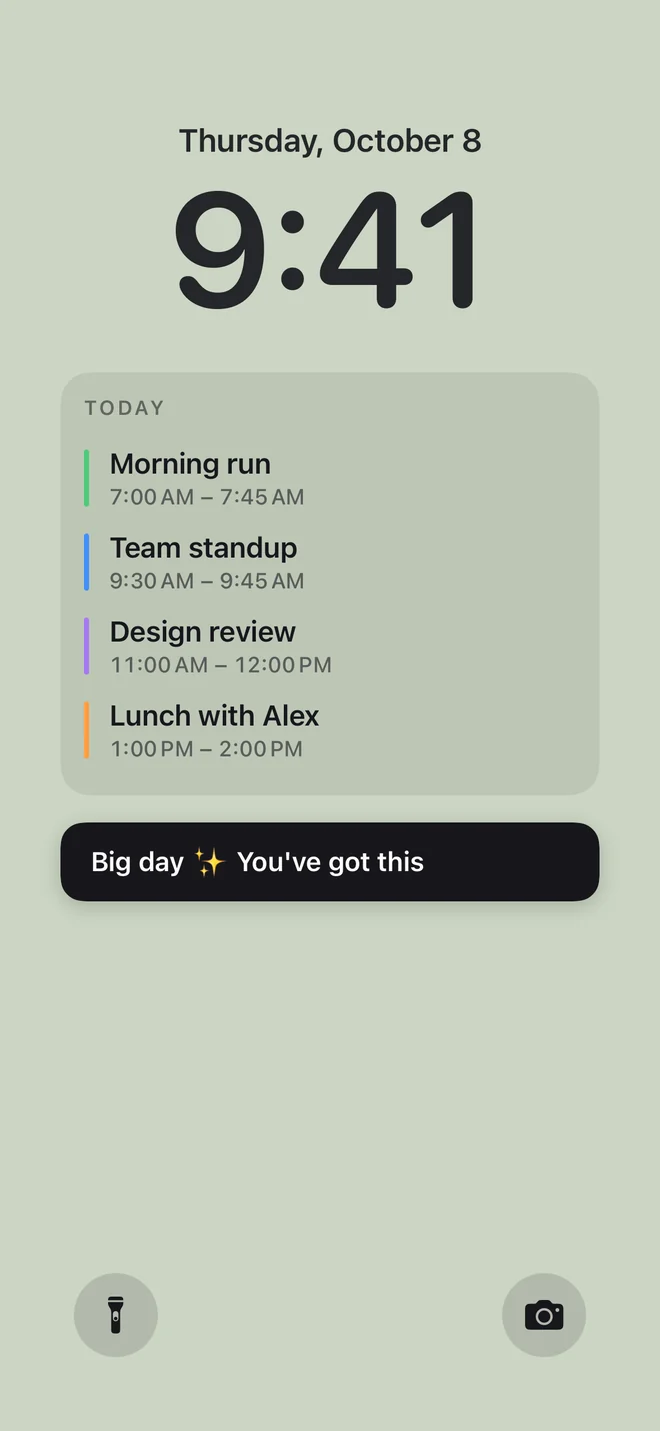
Once Outlook’s events are in Apple’s Calendar, Apple’s Calendar widget can show the next one under the clock, and a calendar wallpaper can show the whole day. Both read the same calendar, so neither shows an event Apple’s Calendar hasn’t received.
| Calendar widget | Calpaper wallpaper | |
|---|---|---|
| Shows | Your next event | Today’s events, all-day ones too, with reminders, a note, the month or a countdown if you like |
| Changes | Kept current by iOS | Each morning at the time you set, and whenever you tap Update |
| Setup | Customize the Lock Screen, then Add Widgets | The app, then a few minutes in Shortcuts, once |
| Cost | Built in | Free; Pro is one optional purchase |
To add the widget, in Apple’s steps: touch and hold the Lock Screen until Customize appears, tap it, tap Add Widgets, then tap or drag the Calendar widget you want and tap Done. iOS describes the next-event widget as “Track your next upcoming event.” We took these labels from Apple’s article and iOS 27.0’s own strings; the simulator’s Lock Screen wasn’t part of this walk.
For the whole day, a wallpaper is the other way: iOS lets only Apple’s Shortcuts change the wallpaper, so an app like Calpaper draws the picture and a daily Shortcuts automation puts it on the Lock Screen. You can keep both: the widget for the next meeting, the wallpaper for the shape of the day.
What it can’t do
- A wallpaper is a morning snapshot. It’s a picture drawn at the time your automation runs. When plans change, tap Update in Calpaper to redraw it.
- An event added in Outlook after 6:00 shows at the next update: your next tap on Update, or the next morning’s run, and only once it has reached Apple’s Calendar.
- Nothing on the iPhone can read the Outlook app’s own calendar. A calendar that lives only in Outlook, because it’s shared view-only or your employer keeps it there, reaches neither the widget nor a wallpaper.
- An account on Fetch can be hours behind. Calpaper asks iOS to refresh your calendar accounts each time it draws the wallpaper, as Apple’s Calendar does when it opens, but iOS decides when an account that doesn’t push really updates.
Questions
Outlook events not showing on iPhone calendar?
Check four things in order. Is the account in Settings › Apps › Calendar › Calendar Accounts, added as Outlook.com or Microsoft Exchange rather than a mail-only account? Is Calendars on for it? In Apple’s Calendar, under Calendars, is the calendar ticked? And is it a calendar someone shared with you (see which calendars come through)? If it’s all there and only new events are late, look at Fetch New Data.
Why does my iPhone calendar not show work meetings?
Usually because the work account is only in the Outlook app, not in Settings. Add it as Microsoft Exchange. If that fails, or it adds and stays empty, your employer may allow only the Outlook app to connect: ask your IT department. Meetings in a team or shared calendar can also stay behind (which calendars come through).
Is there an Outlook widget for the iPhone Lock Screen?
We found none in Microsoft’s documentation or the app’s App Store listing, and people have asked Microsoft for one since 2022. Apple’s Calendar widget shows Outlook events once the account is in Apple’s Calendar.
Can the Outlook app sync its calendar to the iPhone’s Calendar app?
Not on iPhone. Microsoft documents Outlook’s Sync Calendars option as “only supported with Outlook for Android”. On an iPhone, the way in is the account in Settings.
How soon does a new Outlook meeting show on the Lock Screen?
On the widget, as soon as Apple’s Calendar has it: at once with Push, at the next fetch otherwise. On a Calpaper wallpaper, at the next update: a tap on Update, or the next morning.
Does Calpaper connect to my Microsoft account?
No. Calpaper has no account and no servers. It reads Apple’s Calendar on the iPhone, Outlook’s calendars included once they’re there, and draws the wallpaper on the iPhone.
Your whole day, Outlook included, as the wallpaper
Calpaper is an iPhone app that draws today’s events from Apple’s Calendar, Outlook’s among them, into your Lock Screen wallpaper every morning, with your reminders, a note or the month if you want them. In the app, Content › Events lists every calendar on the iPhone, so you can check the Outlook ones are switched on.
Before you download:
- It needs an iPhone with iOS 18 or later.
- Setup uses Apple’s Shortcuts app, once, for a few minutes: 5 steps on iOS 27, 10 on iOS 18–26 (see them for your version).
- You give Calpaper a Photos wallpaper of its own, any photo: Shortcuts can’t put a picture on a Color or Emoji wallpaper.
- It’s a picture redrawn each morning and whenever you tap Update, not a live widget.
- Events, reminders, a note, the month and one countdown are free. Photo backgrounds and the extra styles are Calpaper Pro, one purchase, never a subscription.