
How to put a countdown on your iPhone Lock Screen
Calpaper’s labels checked against version 1.10.2 (iOS 18 or later), and Hanukkah’s dates against Chabad.org and My Jewish Learning · Updated
Short answer
There are three ways. A countdown app’s widget puts the days left to one date in a small widget space. An event in Calendar shows on Apple’s Calendar widget once it’s your next event. Or the countdown can be part of the wallpaper: Calpaper draws the days left to each date under the clock, beside your day, and redraws it every morning. One countdown is free.
Three ways, side by side
| A countdown widget app | An event in Calendar | A Calpaper wallpaper | |
|---|---|---|---|
| Shows | The days left to a date, in a small space | The event, once it’s the next one on your calendar | The days left to each date, as a track to its emoji, with today’s events if you want them |
| Where | A widget space on the Lock Screen | Apple’s Calendar widget | The wallpaper, under the clock |
| Changes | Kept current by the app’s widget | Kept current by iOS | Each morning at the time you set, and whenever you tap Update |
| Setup | The app, then Customize › Add Widgets | An all-day event on the date | The app, then a few minutes in Shortcuts, once |
- A widget app suits one date you want to glance at. Widget spaces are small, so it’s usually a number or a short line. Apple’s steps for adding a widget are on its support page: touch and hold the Lock Screen, tap Customize, then Add Widgets.
- An event in Calendar needs no new app, but Apple’s Calendar widget tracks what’s next (what it shows), so a date weeks away appears only when nothing comes before it, and as an event, not as days left.
- A wallpaper has room for several dates and your day at once. iOS doesn’t let apps change the wallpaper, so Calpaper makes the picture and a daily Shortcuts automation sets it before you wake.
You can keep a widget and the wallpaper together. If your Lock Screen has a row of widgets under the time, turn on Canvas › Widgets under the clock in Calpaper, so the wallpaper starts below them.
A countdown in the wallpaper, step by step
Once Calpaper is set up (the setup guide), in the app:
- Tap Content, then the Countdown chip.
- Tap Add days until.
- Tap the emoji and pick one, for example 🎄 or 🕎. Type a name, up to 24 characters.
- Choose the date.
- Tap Update, or wait for the next morning’s run.
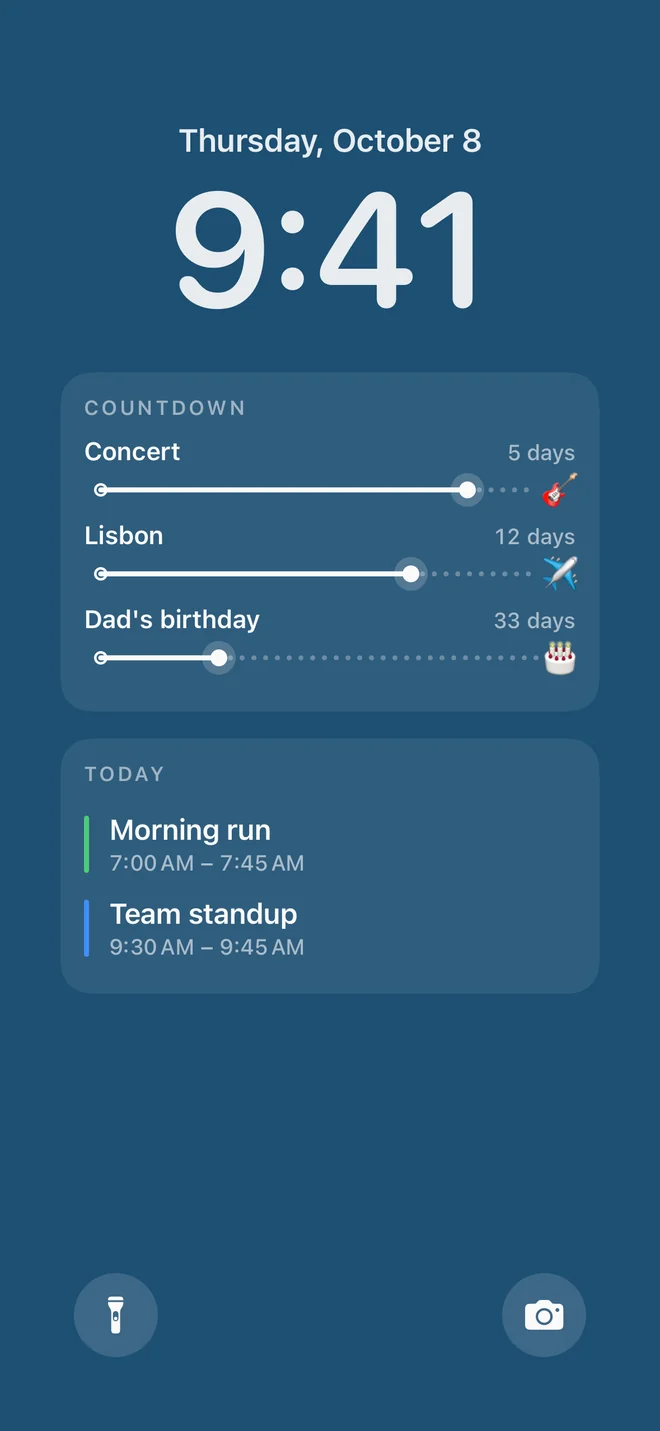
What the countdown shows
- A track for each date. The name and the days left sit over a line from a hollow circle, the day you added it, to a marker for today, then dots on to the emoji. Each morning the marker is a step closer.
- Nearest first. With several dates, the closest comes first. If there are more than fit, the card ends in “+N more”.
- The last days: it says Tomorrow, then Today. The day after, it says Yesterday, then leaves the wallpaper. Its row stays in the app, dimmed, until you delete it.
- One is free: the nearest date reaches your Lock Screen. More dates show on the app’s preview, and on your Lock Screen with Calpaper Pro, one purchase, never a subscription.
Counting up: days since
The same card counts up from a date that matters: days together, days sober, days since a fresh start. In Content › Countdown, tap Add days since, then pick an emoji, a name and the day it started. It shows as a big number that grows every morning. Leave the name empty and only the emoji shows beside the count, for something you’d rather keep to yourself. One days-since count is free.
What it can’t do
- It counts days, not hours or minutes. The wallpaper is a picture made each morning, not a live timer.
- It changes when the shortcut runs: each morning, and when you tap Update. To make it run more often, see how to keep a calendar wallpaper up to date during the day.
- Setup takes a few minutes in Apple’s Shortcuts app, once: 4 steps on iOS 27, 8 on iOS 18–26.
Questions
Does the iPhone have a countdown widget of its own?
Apple’s Calendar widget shows your next event, not the days left to a date. For a number of days, use a countdown app’s widget or a wallpaper that counts.
Does the countdown change by itself?
Yes. The daily Shortcuts automation that sets the wallpaper redraws it each morning, one day closer.
Can I count down to Christmas and Hanukkah at the same time?
Yes, with Calpaper Pro: add one for each, and the nearest comes first. Without Pro the nearest one reaches your Lock Screen, and the others show on the app’s preview.
What happens after the date?
The day after, it says Yesterday. Then it leaves the wallpaper, and its row waits in the app, dimmed, until you delete it.
Can I keep my widgets too?
Yes. Turn on Canvas › Widgets under the clock and the wallpaper’s blocks start below your row of widgets instead of behind them.
The days left, and your day, before you unlock
Calpaper is an iPhone app that draws today’s events, reminders, a note and your countdowns into your Lock Screen wallpaper every morning.

Before you download:
- It needs an iPhone with iOS 18 or later.
- Setup uses Apple’s Shortcuts app, once, for a few minutes: 4 steps on iOS 27, 8 on iOS 18–26 (see them for your version).
- You give Calpaper a Photos wallpaper of its own, any photo: Shortcuts can’t put a picture on a Color or Emoji wallpaper.
- It’s a picture redrawn each morning and whenever you tap Update, not a live widget.
- Events, reminders, a note, the month, one countdown, one days-since count and seven text sizes are free. More countdowns, photo backgrounds, emoji and the extra styles are Calpaper Pro, one purchase, never a subscription.