
How to put Google Calendar on your iPhone Lock Screen, the whole day
Apple’s labels checked against iOS 18.0, 26.5 and 27.0’s own strings; Google’s side from Google’s help, read on 24 November 2026 · Updated
Short answer
Add your Google account to the iPhone’s own Calendar, in Settings › Apps › Calendar › Calendar Accounts. Its events then reach the Lock Screen two ways: Apple’s Calendar widget shows your next event, and a calendar wallpaper, such as Calpaper’s, shows the whole day, redrawn every morning.
Google’s help offers two ways to see Google Calendar on an iPhone: Google’s own app, or syncing your events with Apple’s Calendar app (Google). Only the second puts them where Apple’s Lock Screen widget and calendar wallpapers look, because those read the iPhone’s own Calendar.
Google’s app has Lock Screen widgets of its own. 9to5Google reported three on 26 February 2024, in version 24.7.0, each showing what’s next rather than the whole day. Google’s App Store listing mentions widgets without naming them (version 26.44.0, read on 24 November 2026).
Add your Google account to the iPhone
You add it once, in Settings, with the Google account you use in Google Calendar. Steps 1 to 3 use the labels iOS 18.0, 26.5 and 27.0 carry in their own strings; steps 4 to 6 follow Google’s and Apple’s help.
- Open Settings, tap Apps, then Calendar. Google’s own steps still say “Scroll and tap Calendar” and then “Accounts”: since iOS 18 the Calendar settings are under Apps, and the row is called Calendar Accounts.
- Tap Calendar Accounts, then Add Account. On an iPhone with no account at all yet, the Calendar screen shows Add Account… in that place: tap it.
- On iOS 26 and 27, a screen asks you to Enter your email address. Tap choose from a list. under the box to see the providers, then Google. On iOS 18 the list opens straight away.
- Sign in with your Google address and password. Google adds one case: if you use 2-Step Verification and “don’t have the latest operating system”, enter an app password instead of your regular password (Google).
- Turn on Calendars, then tap Save. Mail and contacts come along by default; in Google’s words, “To sync only your calendar, turn off the other services.”
- Open Apple’s Calendar app. Google’s last step: “Open the Calendar app on your iPhone to find your Google Calendar events.”
Already have the Google account on the iPhone for Mail? Then you don’t add it again. Google: “To sync with an existing account, tap the account and turn on Calendars.” The account is listed under Calendar Accounts.
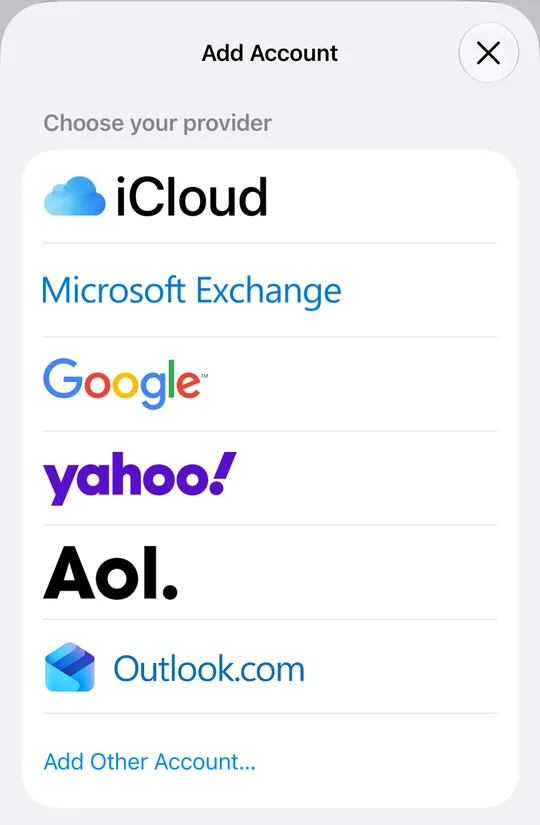 Add Account, after “choose from a list.”
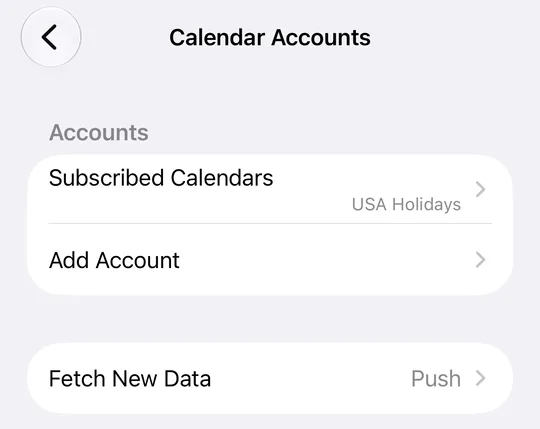 Calendar Accounts
Google Calendar events missing or late on the iPhone?
Start in Apple’s Calendar app. If an event isn’t there, nothing on the Lock Screen can show it, and the fix is one of the checks below. If it is there and only your Calpaper wallpaper lacks it, tap Update in Calpaper: the wallpaper is a picture from its last update.
Is the Google account on the iPhone, with Calendars on?
Open Settings › Apps › Calendar › Calendar Accounts. Your Google account should be listed under Accounts. Tap it and check Calendars is on. With it off, none of that account’s calendars are on the iPhone, for any app.
Which Google calendars reach the iPhone
Not every calendar you see in Google Calendar. Google’s help page for Apple’s Calendar lists what syncs on its own (Google):
- “Any calendars that you find under "My Calendars" in Google Calendar on your computer”;
- “Birthdays”.
For any other calendar, Google’s steps are: visit the Calendar sync page, “Check or uncheck the names of any calendars”, click Save, then refresh. You sign in to that page with your Google account.
Google gives these steps on the page’s Computer tab, for Apple’s Calendar on a Mac; its iPhone & iPad tab doesn’t mention them. The sync page is a setting of your Google account, so it’s the place to look for an iPhone too. We couldn’t try it ourselves: a simulator has no Google account.
Google also lists three things that don’t work in Apple’s Calendar: “Email notifications for events”, “Create new Google calendars” and “Room Scheduler”. Make a new Google calendar in Google Calendar itself, then check it reaches the iPhone.
Shared and subscribed calendars
- A calendar someone shared with you, such as a partner’s, a family’s or a team’s, is on Google’s list only if it’s under My Calendars in Google Calendar on a computer. Otherwise, tick it on the Calendar sync page above.
- A calendar you added to Google Calendar from a link, such as a club’s fixtures or a school’s term dates, isn’t on Google’s list either unless it’s under My Calendars. If you can’t tick it on the sync page, subscribe on the iPhone instead.
- Or subscribe on the iPhone itself. If you have the calendar’s link, Apple’s Calendar can follow it without Google: tap Add Calendar, then Add Subscription Calendar, and in Apple’s words “enter the URL of the .ics file you want to subscribe to (and any other required server information), then tap Find” (Apple). It’s then a calendar of its own on the iPhone, “read-only”, as Apple says.
Late: an account that’s behind (Push and Fetch)
An account that pushes gets new events as the server sends them; one on a fetch schedule waits for the next fetch. With Automatically, in Apple’s words, “new data is downloaded when your iPhone is charging and connected to Wi-Fi.” So a Google event made at 10:00 can reach the iPhone at once, or only that evening on the charger.
- Open Settings › Apps › Calendar › Calendar Accounts. The Fetch New Data row, under your accounts, shows the current setting.
- Tap Fetch New Data to see how each account gets new data. For an account that doesn’t push, Apple’s step is: “Under Fetch, choose a schedule.” A schedule such as Hourly keeps it closer to Google during the day than Automatically.
The labels Push, Fetch, Automatically and Hourly are in the iOS 18.0, 26.5 and 27.0 strings. On the simulators the screen behind Fetch New Data didn’t open, and they have no Google account, so we haven’t seen which choices iOS offers for a Google account. Check yours there.
Calpaper asks iOS to refresh your calendar accounts each time you open it and each time it makes the wallpaper, as Apple’s Calendar does when it opens, and at the morning run it waits up to a second and a half for new events to arrive. iOS still decides when an account that doesn’t push really updates.
A calendar switched off on the iPhone
- In Apple’s Calendar app, the list of calendars decides what that app shows: Apple’s step is “Select the calendars you want to view” (Apple). A Google calendar unticked there is still on the iPhone, just not shown in that app.
- In Calpaper, Content › Events has its own list: every calendar on the iPhone, with its account’s name under it and a switch each. Calpaper doesn’t follow the Calendar app’s ticks, so check the Google calendars are switched on here too.
More than one Google account
Add each one, say work and personal, with Add Account: Apple’s Calendar shows only the accounts added in Settings. If a work or school account won’t add, or adds and shows no events, ask whoever manages it.
The widget or a wallpaper
Once Google’s events are in Apple’s Calendar, Apple’s Calendar widget can show the next one, and a calendar wallpaper can show the whole day. Both read the same calendar, so neither shows an event Apple’s Calendar hasn’t received.
| Calendar widget | Calpaper wallpaper | |
|---|---|---|
| Shows | Your next event: iOS describes it as “Track your next upcoming event.” | Today’s events, all-day ones too, with reminders, a note or the month if you like |
| Changes | Kept current by iOS | Every three hours on iOS 27.2 and later with Calpaper 1.11’s shortcut, otherwise each morning at the time you set; and whenever you tap Update |
| Setup | Customize the Lock Screen, then Add Widgets | The app, then a few minutes in Shortcuts, once |
To add the widget, in Apple’s steps: touch and hold the Lock Screen until Customize appears, tap it, tap Add Widgets, then tap or drag the widgets you want and tap Done. With Google’s app installed, its widgets are offered there too.
For the whole day, a wallpaper is the other way. iOS lets only Apple’s Shortcuts change the wallpaper, so an app like Calpaper draws the picture and a daily Shortcuts automation puts it on the Lock Screen. You can keep both: the widget for the next meeting, the wallpaper for the shape of the day. How to put your calendar on the iPhone Lock Screen: the next event, or your whole day compares the two in more detail.
What it can’t do
- A wallpaper is a morning snapshot. It’s a picture drawn when your automation runs. When plans change, tap Update in Calpaper to redraw it, or run it at more times of day.
- A Google event added after the morning run shows at the next update: your next tap on Update, or the next morning’s run, and only once it has reached Apple’s Calendar.
- Nothing on the iPhone can read the Google Calendar app’s own data. A calendar that isn’t synced to Apple’s Calendar reaches neither Apple’s widget nor a wallpaper.
- Calpaper has no Google sign-in. It never asks for your Google password and can’t fix a sync: it draws what Apple’s Calendar holds.
- Events you’ve declined are left out of a Calpaper wallpaper.
- An account on Fetch can be hours behind. Calpaper asks iOS to refresh, but iOS decides when an account that doesn’t push really updates.
Questions
Why is my Google Calendar not showing on my iPhone Lock Screen?
Apple’s Lock Screen widget and calendar wallpapers read Apple’s Calendar app, not Google’s. Add your Google account in Settings › Apps › Calendar › Calendar Accounts with Calendars on. If the events are in Apple’s Calendar and not on your Calpaper wallpaper, tap Update.
Google Calendar not syncing with my iPhone calendar?
Check in this order: the account is under Calendar Accounts, Calendars is on for it, the calendar is under My Calendars or ticked on Google’s Calendar sync page, and it’s ticked in Apple’s Calendar app. If only new events are late, look at Fetch New Data.
Why don’t calendars shared with me show on my iPhone?
Google syncs calendars under My Calendars, and Birthdays, by itself. A shared calendar elsewhere needs ticking on Google’s Calendar sync page (see shared and subscribed calendars).
Is there a Google Calendar widget for the iPhone Lock Screen?
Yes, in Google’s own app: 9to5Google reported three Lock Screen widgets in February 2024, each showing what’s next. Apple’s Calendar widget shows Google events too once the account is in Settings. Neither shows the whole day; a wallpaper can.
Does Calpaper connect to my Google account?
No. Calpaper has no account, no servers and no Google sign-in. It reads Apple’s Calendar on the iPhone, your Google calendars included once they’re there, and draws the wallpaper on the iPhone.
How soon does a new Google event show on the Lock Screen?
On Apple’s widget, as soon as Apple’s Calendar has it: at once with Push, at the next fetch otherwise. On a Calpaper wallpaper, at the next update: a tap on Update, or the next morning.
Can I see Google and iCloud calendars together?
Yes. Apple’s Calendar shows every account added in Settings side by side, and Calpaper’s Content › Events lists every calendar on the iPhone, so one wallpaper can draw events from Google, iCloud and Outlook together.
Your whole day, Google Calendar included, as the wallpaper
Calpaper for iPhone draws today’s events from Apple’s Calendar, your Google calendars among them, into your Lock Screen wallpaper every morning, with your reminders, a note or the month if you want them. It has no Google sign-in of its own: in the app, Content › Events lists every calendar on the iPhone, so you can check the Google ones are switched on.
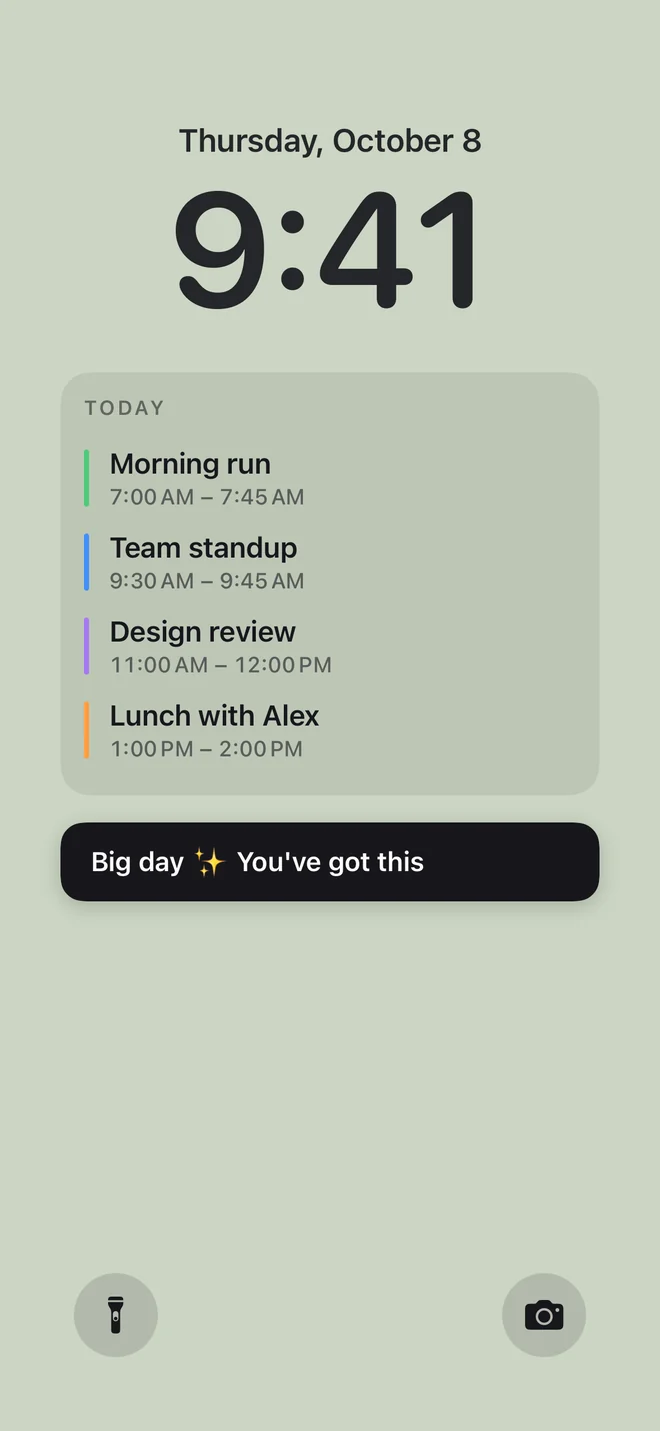

Before you download:
- It needs an iPhone with iOS 18 or later.
- Setup uses Apple’s Shortcuts app, once, for a few minutes: 4 steps on iOS 27, 8 on iOS 18–26 (see them for your version).
- You give Calpaper a Photos wallpaper of its own, any photo: Shortcuts can’t put a picture on a Color or Emoji wallpaper.
- It’s a picture redrawn each morning and whenever you tap Update, not a live widget.
- Events, reminders, a note, the month, one countdown and seven text sizes come with the app. Photo backgrounds, the weather and the extra styles are Calpaper Pro, a single purchase in the app.
Sources
Each read on 24 November 2026.
- Google Calendar Help, Add Google Calendar events to Apple Calendar, iPhone & iPad tab, and its Computer tab (which calendars sync, the sync page, what doesn’t work).
- Google Calendar Help, Sync Calendar with a phone or tablet, iPhone & iPad tab.
- Apple, iPhone User Guide, Change your Calendar settings on iPhone (adding an account, Fetch New Data).
- Apple, iPhone User Guide, Set up multiple calendars on iPhone (subscriptions, choosing calendars to view).
- Apple Support, How to add and edit widgets on your iPhone.
- 9to5Google, Google Calendar for iPhone adds lockscreen widgets, 26 February 2024.
- Google Calendar’s US App Store listing, version 26.44.0.