
iPhone Calendar widget not showing events? What it shows, and the fixes
Widget checked on the iOS 27.0 simulator; Apple’s labels checked against iOS 18.0, 26.5 and 27.0’s own strings · Updated
Short answer
The Lock Screen’s Calendar widget, Next Event, shows your next timed event. In our iOS 27 test it skipped all-day events. If a timed event is missing, check it’s in Calendar, its calendar is chosen in the widget, and its account has synced. For the whole day, use a wallpaper.
This page is about Apple’s own Calendar widget under the Lock Screen clock. On 24 November 2026 we put it on the Lock Screen of the iOS 27.0 simulator, with a timed event, an all-day event, a calendar hidden in the Calendar app and a reminder with a time, and wrote down what it showed. The labels in bold are Apple’s, read from iOS 18.0, 26.5 and 27.0’s own strings, in English.
What the widget shows
In the widget gallery, under Calendar, the widget is called Next Event, and iOS describes it in one line: “Track your next upcoming event.” It shows one item, its time and its title. This is what it showed on the iOS 27.0 simulator:
| On the iPhone | What the widget showed |
|---|---|
| An all-day birthday today and a meeting at 10:34 | The 10:34 meeting |
| The all-day birthday, and nothing timed left today | The date, “No Events Today” and “Your day is clear” |
| No event before a reminder due at 10:54 | The reminder, with a circle to tick it off |
| A meeting in a calendar we had unticked in the Calendar app, with Mirror Calendar App on | The meeting, although the Calendar app hid it |
| The same, with the widget’s calendars chosen by hand | Not the meeting: the next event from the chosen calendars |
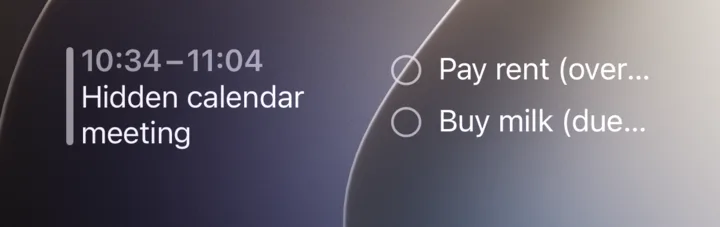
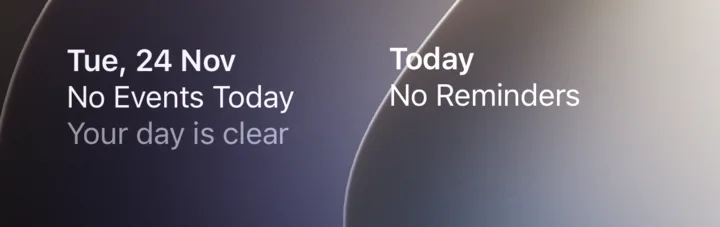
All-day events aren’t lost, just left out. On the same simulator, the Home Screen’s Calendar widget listed the all-day birthday by name. The Lock Screen widget has no switch for them: in iOS 18.0, 26.5 and 27.0, its only settings are Mirror Calendar App and Calendars.
Five checks for a missing event
- Is the event in Apple’s Calendar app? The widget reads the iPhone’s own Calendar, not the Google Calendar or Outlook apps. Open Calendar and look at today. If the event isn’t there, the widget can’t show it: its account needs adding in Settings › Apps › Calendar › Calendar Accounts (step by step for Google Calendar and for Outlook).
- Is it a timed event? If it’s all-day, the widget leaves it out, as in the table above. To see it before you unlock, use the Home Screen’s Calendar widget, or a wallpaper with your day (below).
-
Is its calendar chosen? Two places decide this.
- In the Calendar app: tap Calendars at the bottom of the screen and tick the calendars you want, as Apple puts it, “Select the calendars you want to view.”
- In the widget: touch and hold the Lock Screen, tap Customize (and Lock Screen if asked), then tap the Calendar widget. Mirror Calendar App is on at first. Turn it off, tap Choose beside Calendars, tick the calendars you want, tap ✓, close the panel and tap Done.
-
Has the account caught up? An event made on a computer, another device or in Google’s or Microsoft’s apps reaches the widget only after it reaches the iPhone.
- Refresh: in Calendar, tap Calendars, then, in Apple’s words, “Swipe down on the list to refresh your events.”
- Fetch New Data: an account that doesn’t push waits for its next fetch, and with Automatically, Apple says, “new data is downloaded when your iPhone is charging and connected to Wi-Fi.” Push and Fetch, step by step.
- iCloud calendars: Apple’s checks are iCloud’s system status, the same Apple Account on every device with Calendars turned on in iCloud, and the date and time: “Check that the date and time settings on your device are correct.” Its last step is Settings › Apps › Calendar › Sync: “If All Events is selected, choose a specific timeframe instead… If a specific timeframe is selected, choose All Events instead.”
- Subscribed calendars (holidays, a team’s or a school’s feed): Apple’s iPhone User Guide doesn’t say how often the iPhone refreshes them.
- Is a Focus on? Apple says a Focus can filter what apps show: “you can choose which mail account or which calendar to use during the Focus.” It doesn’t say whether the Lock Screen widget follows that filter. A Focus can also bring a Lock Screen of its own, so “that Lock Screen appears whenever that Focus is on”, and that one may not have the widget. If events go missing only during a Focus, look at that Focus’s filters and its Lock Screen.
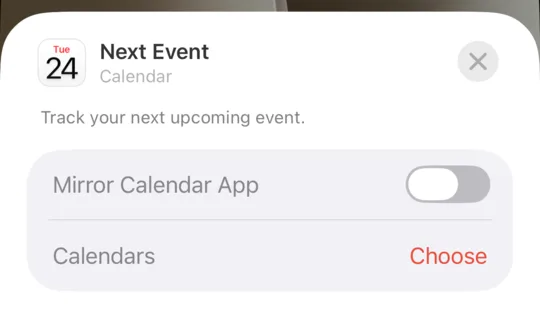 The widget’s settings
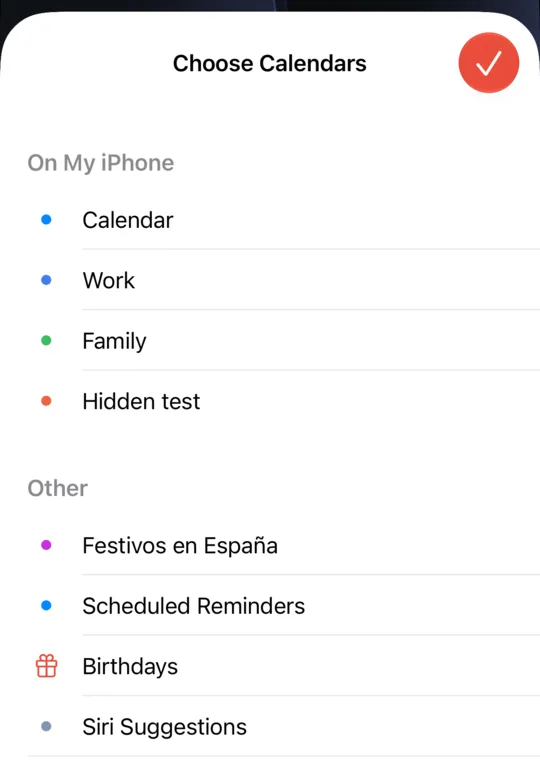 After Choose
Apple’s support pages describe adding the widget but not its settings, so the steps in check 3 come from our walk on the simulator, with the labels from iOS’s strings.
The whole day, as a wallpaper
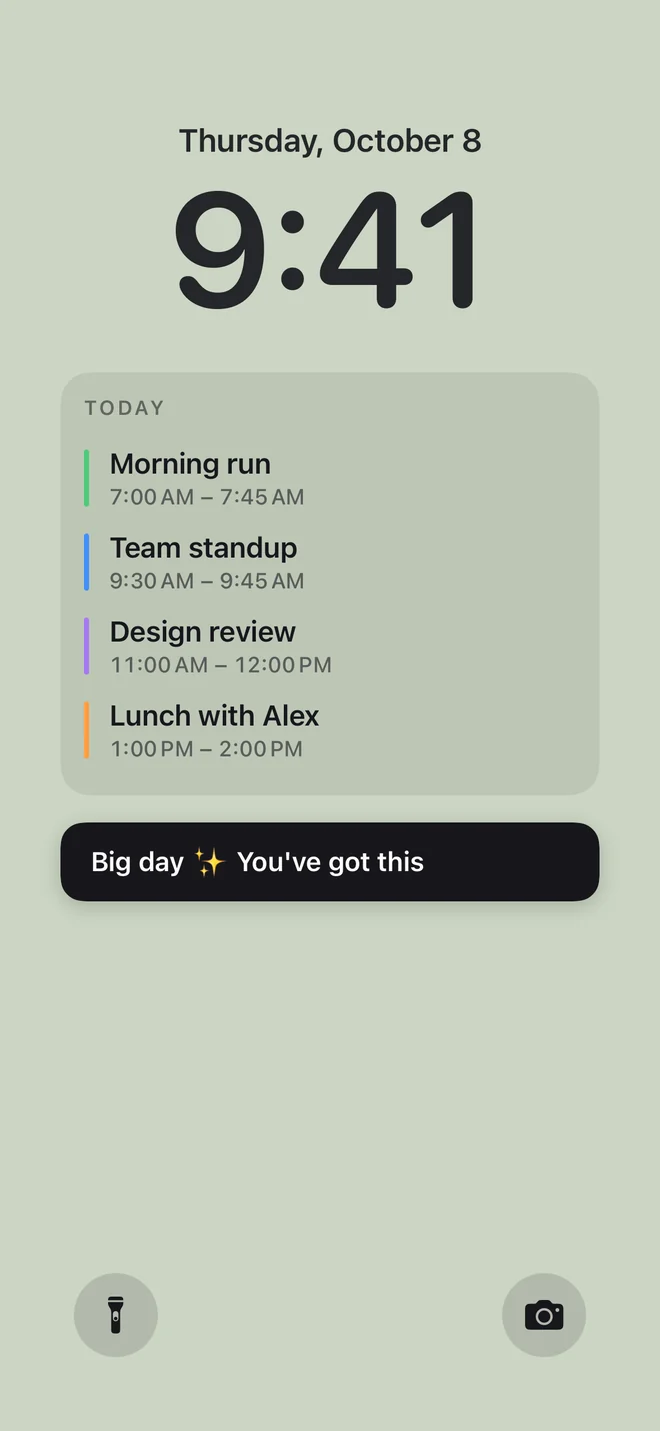
The widget is made for what’s next. To see the whole day before you unlock, all-day events included, the day has to be part of the wallpaper: an app draws it into a picture, and a Shortcuts automation sets that picture each morning. How to put your calendar on the iPhone Lock Screen explains it in full. Calpaper for iPhone works this way, and here is how it handles the cases above (version 1.10.2):
- All-day events come first, marked All day, then each timed event with its start and end. If birthdays and holidays crowd the day, switch off All-day events in Content › Events.
- It keeps its own calendar list. Calpaper doesn’t follow the ticks in the Calendar app or the widget: Content › Events lists every calendar on the iPhone, and you switch each one on or off there.
- An account that’s behind is still behind. Each time it draws the wallpaper, Calpaper asks iOS to refresh your calendar accounts, as the Calendar app does when it opens. But iOS decides when an account on Fetch really updates, and an Outlook account on Fetch can be hours behind (Push and Fetch).
- It’s a snapshot. An event added after the last run shows at the next run of your shortcut, or when you tap Update. When today’s events change, the app’s status pill says Update.
The widget’s name in your language
If your iPhone isn’t in English, the widget gallery shows these words, as iOS 26.5 and 27.0 have them.
| Language | Widget | iOS’s description |
|---|---|---|
| English | Next Event | Track your next upcoming event. |
| Spanish (Spain) | Evento siguiente | Consulta tu próximo evento del calendario. |
| Spanish (Latin America) | Próximo | Mantente al tanto de tu evento próximo. |
| Portuguese (Brazil) | Próximo Evento | Consulte o seu próximo evento. |
| German | Nächstes Ereignis | Behalte das nächste anstehende Ereignis im Blick. |
| French | Évènement suivant | Consultez votre prochain évènement. |
| Italian | Prossimo evento | Tieni d’occhio il prossimo evento in programma. |
| Japanese | 次の予定 | 次に行われる予定を表示します。 |
| Korean | 다음 이벤트 | 다음 예정된 이벤트를 추적합니다. |
| Chinese (Taiwan) | 下一個行程 | 追蹤你的下一個行程。 |
| Chinese (Hong Kong) | 下一個行程 | 追蹤下一個已預定的行程。 |
| Chinese (Simplified) | 下个日程 | 追踪下个临近日程。 |
| Turkish | Sonraki Etkinlik | Bir sonraki etkinliğinizi takip edin. |
Simplified Chinese words it differently on older versions: iOS 18.0 says 下一个日程, and iOS 18.0 and 26.5 say 跟踪下个临近日程。 Every other line is the same on iOS 18.0.
What it can’t do
- Next Event shows one item at a time. It can’t lay out your day. The Home Screen’s Calendar widgets and a calendar wallpaper can.
- It has no setting for all-day events. Its settings are Mirror Calendar App and Calendars, nothing more.
- Nothing on the iPhone shows an event that hasn’t reached the Calendar app. Not the widget, not a wallpaper. A calendar that lives only inside the Google Calendar or Outlook app stays there.
- A wallpaper changes only when your shortcut runs or you tap Update. To keep it closer to your day, see how to keep a calendar wallpaper up to date during the day.
- We walked iOS 27.0 only. The iOS 18.0 and 26.5 simulators didn’t take our taps, so for those versions this page relies on their strings (the same widget, name and settings) and not on what we saw.
Questions
Why does my Lock Screen calendar widget say “No Events Today” when I have an event?
Most likely it’s an all-day event, which Next Event leaves out, or its calendar isn’t among the widget’s calendars. On the iOS 27.0 simulator, an all-day birthday on its own gave “No Events Today” and “Your day is clear”.
Why are all-day events not showing on my iPhone Lock Screen?
The Lock Screen’s Calendar widget shows timed events, and has no setting to change that. The Home Screen’s Calendar widget listed the same all-day event. A Calpaper wallpaper draws all-day events first, marked All day.
Why does the widget show a calendar I hid?
On the iOS 27.0 simulator, Mirror Calendar App kept showing a calendar we had unticked in the Calendar app. Turn Mirror Calendar App off in the widget’s settings and choose its calendars by hand (check 3).
Why are reminders showing in my calendar widget?
The Calendar app can show reminders that have a date: on iOS 18 its What’s New screen says “View and create scheduled reminders in calendar.” On the iOS 27.0 simulator, Next Event showed a reminder due at 10:54 when no event came before it. To keep reminders out, choose the widget’s calendars without Scheduled Reminders. For reminders themselves, see Reminders not showing on your iPhone Lock Screen?
My Google Calendar events aren’t in the widget. Why?
The widget reads Apple’s Calendar app, so Google’s events show only once your Google account is added in Settings › Apps › Calendar › Calendar Accounts with Calendars on. Google Calendar on your iPhone Lock Screen, step by step.
Can the Lock Screen widget show more than one event?
Next Event shows one item at a time. For several, use the Home Screen’s Calendar widgets; for the whole day before you unlock, a wallpaper.
Your whole day, before you unlock
Calpaper is an iPhone app that draws today’s events from Apple’s Calendar into your Lock Screen wallpaper every morning, all-day ones included, with your reminders, a note or the month if you want them.

Before you download:
- It needs an iPhone with iOS 18 or later.
- Setup uses Apple’s Shortcuts app, once, for a few minutes: 4 steps on iOS 27, 8 on iOS 18–26 (see them for your version).
- You give Calpaper a Photos wallpaper of its own, any photo: Shortcuts can’t put a picture on a Color or Emoji wallpaper.
- It’s a picture redrawn each morning and whenever you tap Update, not a live widget.
- Events, reminders, a note, the month and one countdown come with the app. Photo backgrounds and the extra styles are part of Calpaper Pro.
Sources
Apple’s pages were read on 24 November 2026. The walk used a new iPhone 17 Pro simulator on iOS 27.0, set to English, with sample events and reminders made for it, and was deleted afterwards.
- Apple Support, How to add and edit widgets on your iPhone (published 14 September 2026): Customize, Add Widgets, Done.
- iPhone User Guide, Set up multiple calendars on iPhone: the Calendars button.
- iPhone User Guide, Change your Calendar settings on iPhone: Fetch New Data.
- Apple Support, If your iCloud Contacts, Calendars, or Reminders won’t sync (published 4 April 2026): refreshing, date and time, Sync.
- iPhone User Guide, Set up a Focus on iPhone: Focus filters.
- iPhone User Guide, Create a custom iPhone Lock Screen: a Lock Screen linked to a Focus.